Single Sign-On
Single Sign-On (SSO) lets everyone with an email address on your organization's domain sign in to Resend through your own identity provider. With Enforce SSO turned on, your provider becomes the only way in, so removing someone there also removes their access to Resend.
Requirements
Section titled “Requirements”- SSO is available as an add-on on Scale plans, and included on Enterprise plans. See pricing for details.
- You must be an Admin of the team.
- Your own email address must be on the domain you want to use for SSO. For example, to set up SSO for
acme.com, you must be signed in asyou@acme.com.
Set up SSO
Section titled “Set up SSO”Start the setup from Team Settings
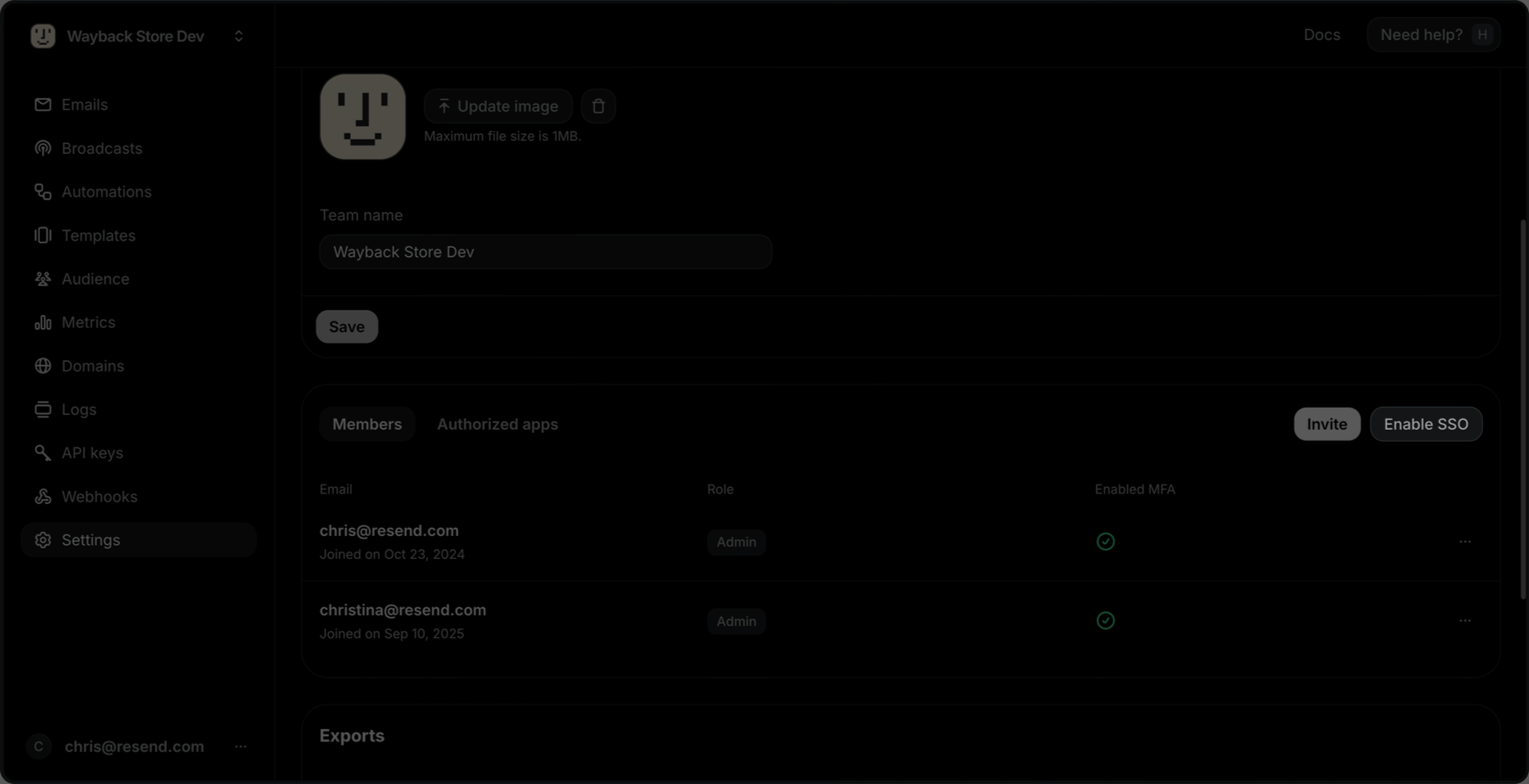
Navigate to your Team Settings and click Enable SSO.
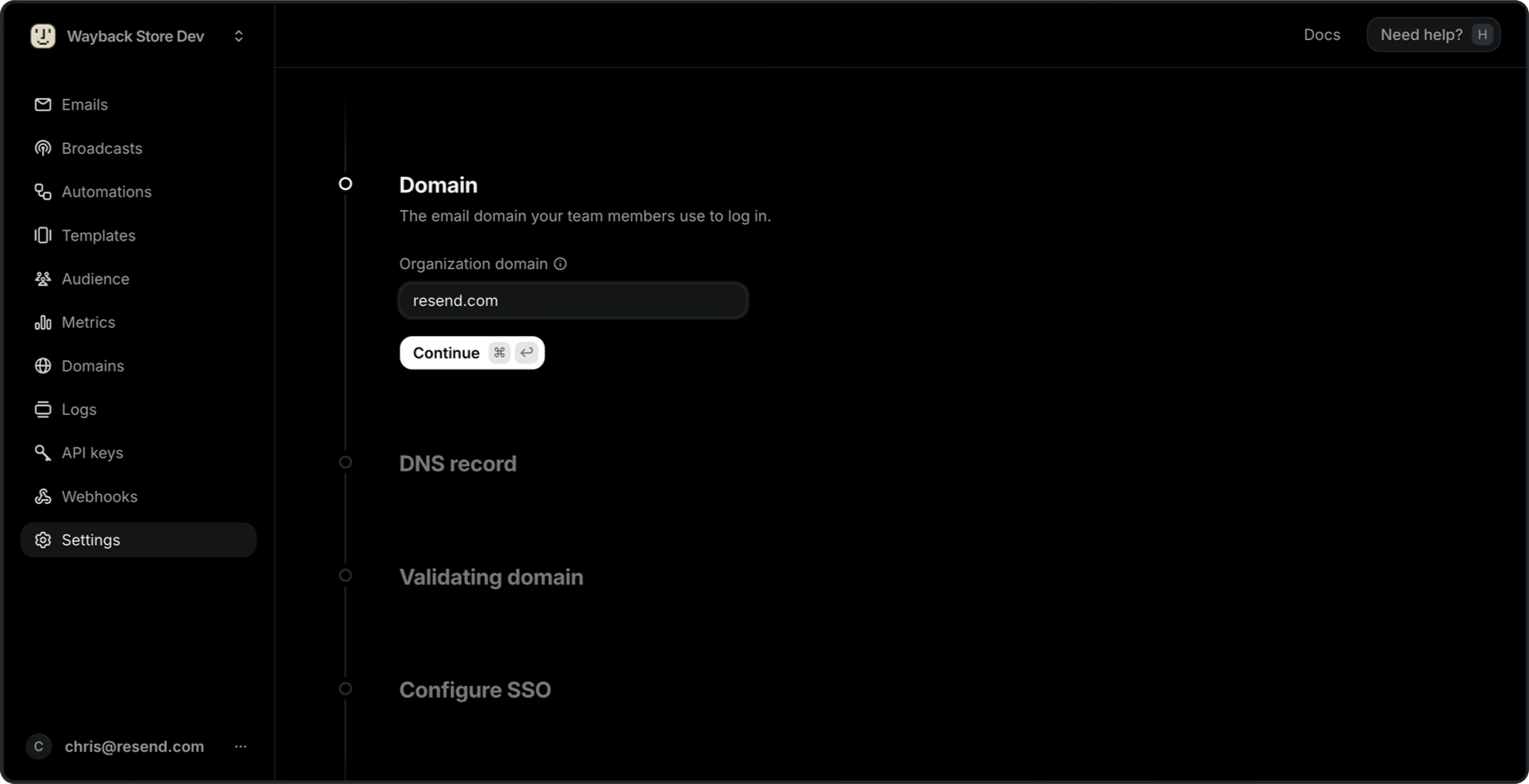
Enter your organization domain
This is the email domain your team members use to log in. It doesn't have to match the domains you use to send or receive email.
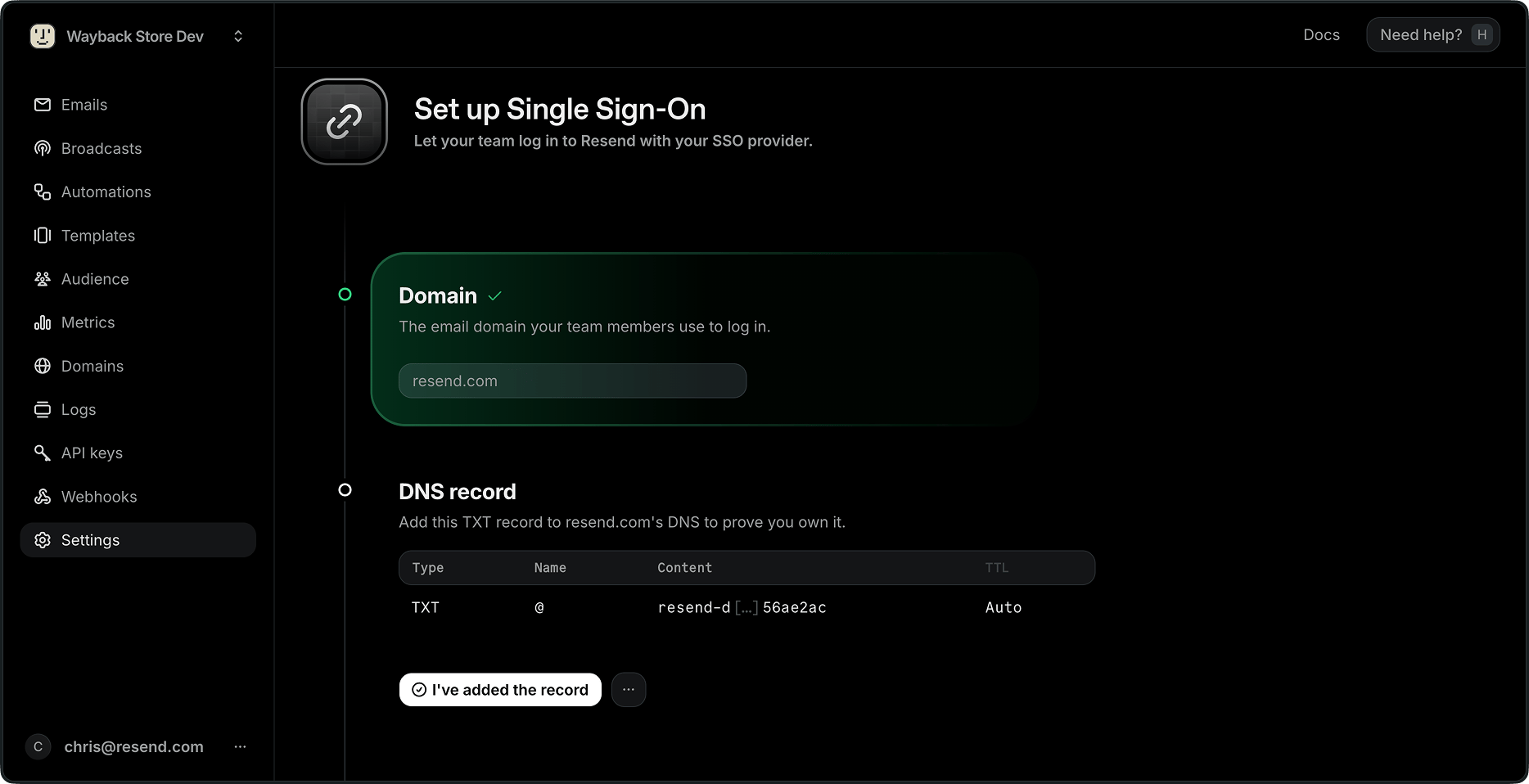
Add the TXT record to your DNS
Resend issues a
TXTrecord that proves you own the domain. Add it at the apex of your domain:Type Name Content TTL TXT @ resend-domain-verification=<value>Auto Copy the value from the Dashboard rather than typing it, since it's unique to your domain.
If the domain is already verified for sending in Resend, it's verified for SSO right away. This step and the next one are marked complete for you, so continue from Configure SSO.
Wait for verification
Click I've added the record. Resend checks your DNS repeatedly for up to an hour and updates the page as it goes. DNS changes usually propagate within a few minutes.
Connect your identity provider
Once the domain is verified, click Finish setup. A new tab opens where you configure the connection to your identity provider.
When you return to Resend, the Single Sign-On section of your Team Settings shows SSO as enabled.
If you leave the setup before finishing, your progress is kept. Return to Team Settings and click Continue SSO setup to pick up where you left off.
Sign in with SSO
Section titled “Sign in with SSO”Team members sign in at resend.com/login:
- They enter their email address.
- If their domain has SSO configured, they're offered Continue with SSO.
- They authenticate with your identity provider and land in the team.
Anyone who signs in through SSO and isn't yet a member of the team is added automatically with the Member role. No invitation is needed. To give someone Admin access, change their role in Team Settings.
Enforce SSO
Section titled “Enforce SSO”By default, members can still sign in with a password, Google, or GitHub. Turn on Enforce SSO in the Single Sign-On section of your Team Settings to require SSO instead.
When enforcement is on, anyone whose email address is on your SSO domain is redirected to your identity provider, including attempts to sign in with a password, Google, or GitHub. Only Admins can change this setting.
Restrict joining other teams
Section titled “Restrict joining other teams”Resend can also prevent accounts on your SSO domain from taking your organization's identity into unrelated teams. When this restriction is enabled, accounts on your SSO domain can't:
- create new teams
- be invited to, or accept invitations from, teams outside your SSO organization
This isn't a self-serve setting. Contact support if you want it enabled for your domain.
Disable SSO
Section titled “Disable SSO”- Navigate to your Team Settings.
- In the Single Sign-On section, toggle Disable SSO.
- Type
DISABLE SSOto confirm.
This permanently removes your team's SSO configuration, including the verified SSO domain. Your sending and receiving domains aren't affected. Team members sign in with a password until you set SSO up again.
Troubleshooting
Section titled “Troubleshooting”"We couldn't find the TXT record"
The record isn't visible to Resend yet. Confirm it was added at the apex of the domain (@, not a subdomain), then click I've added the record to check again. Some DNS providers take longer than a few minutes to propagate.
"We found a TXT record, but its value doesn't match"
There's a resend-domain-verification record on the domain with a different value, usually left over from an earlier setup. Replace its content with the value shown in the Dashboard and verify again.
Verification stopped without finishing
Resend stops checking after an hour. Fix the record, then start a new check with I've added the record.
Setup shows as unfinished
The identity provider connection was never completed. Open Team Settings, click Continue SSO setup, and finish the last step.
A member isn't offered "Continue with SSO"
Their email domain must match your verified SSO domain, and the setup must be complete. Confirm SSO shows as enabled in Team Settings.
Non-admins can't change SSO settings
Members can see the team's SSO configuration, but only Admins can set it up, enforce it, or disable it.
If you're still stuck, contact support.