Squarespace
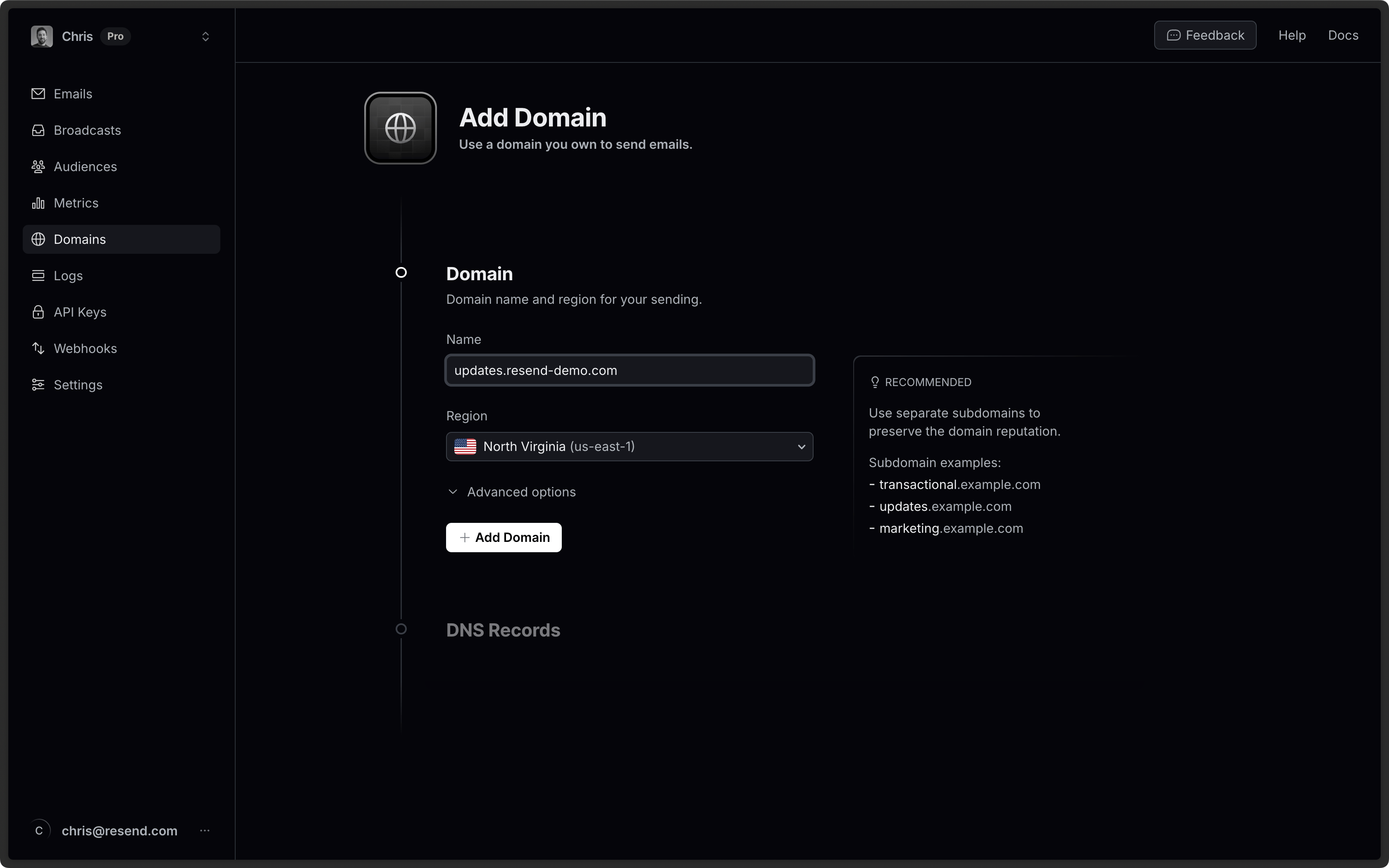
Add Domain to Resend
Section titled “Add Domain to Resend”First, log in to your Resend Account and add a domain.
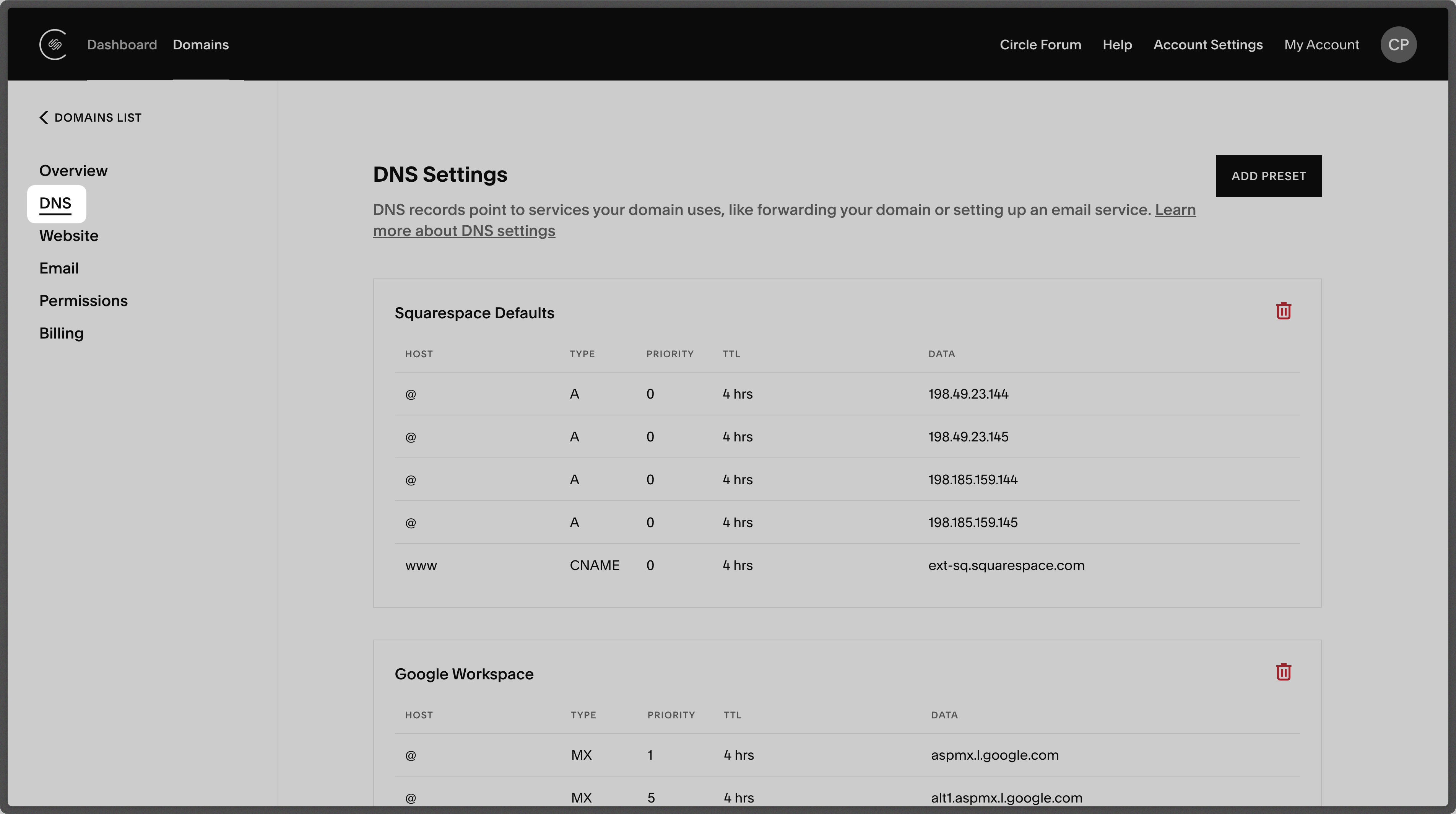
Log in to Squarespace
Section titled “Log in to Squarespace”Log in to your Squarespace domains page and click on your domain.
Add MX SPF Record
Section titled “Add MX SPF Record”Scroll down to the Custom records section and select Add record on Squarespace.
- Type
sendfor theHostof the record. - Set the
TypetoMX. - Set the
Priorityto10. - Use the Default 4 hours for
TTL. - Copy the MX Value from Resend into the
Mail Serverfield - Select
Save.
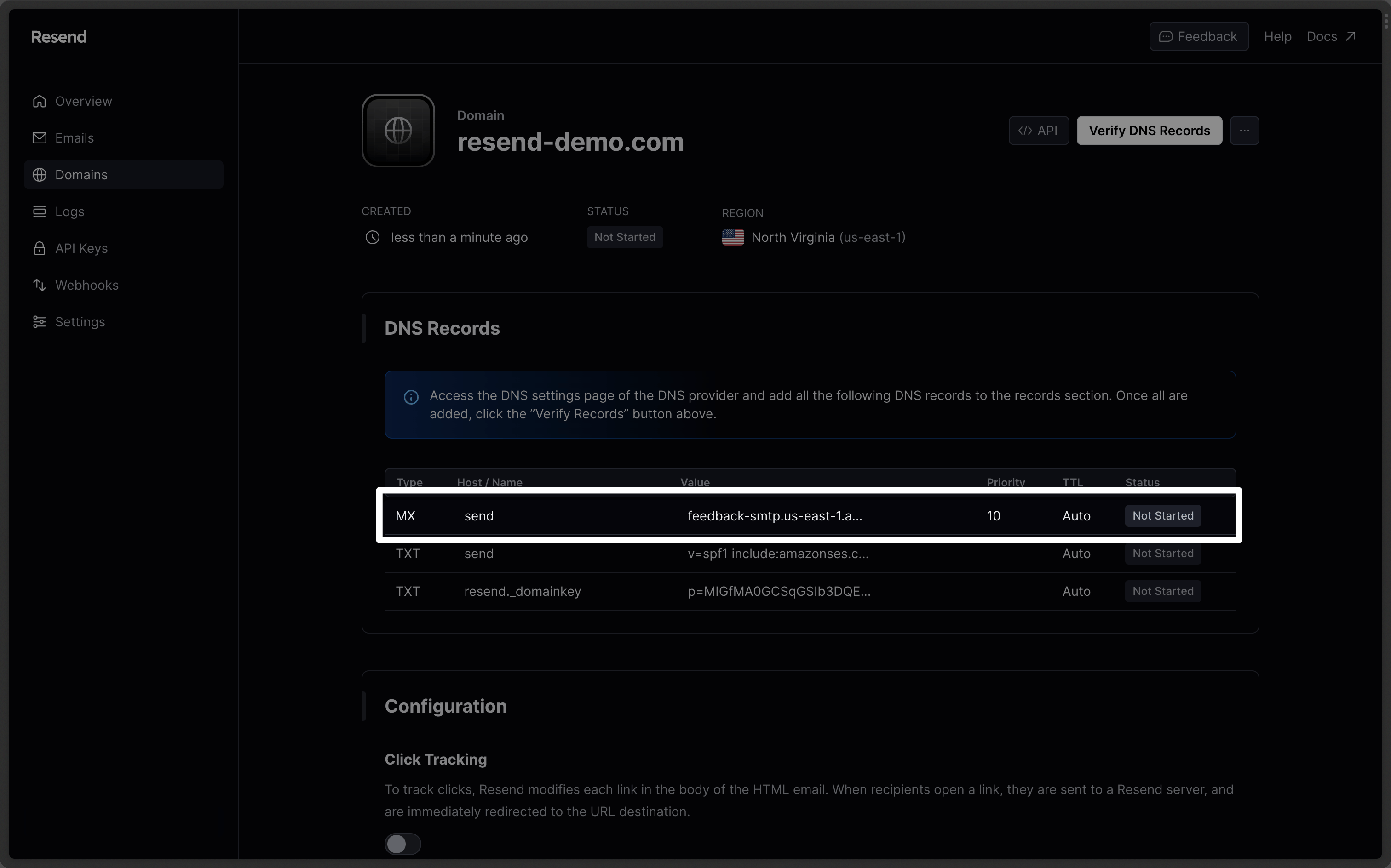
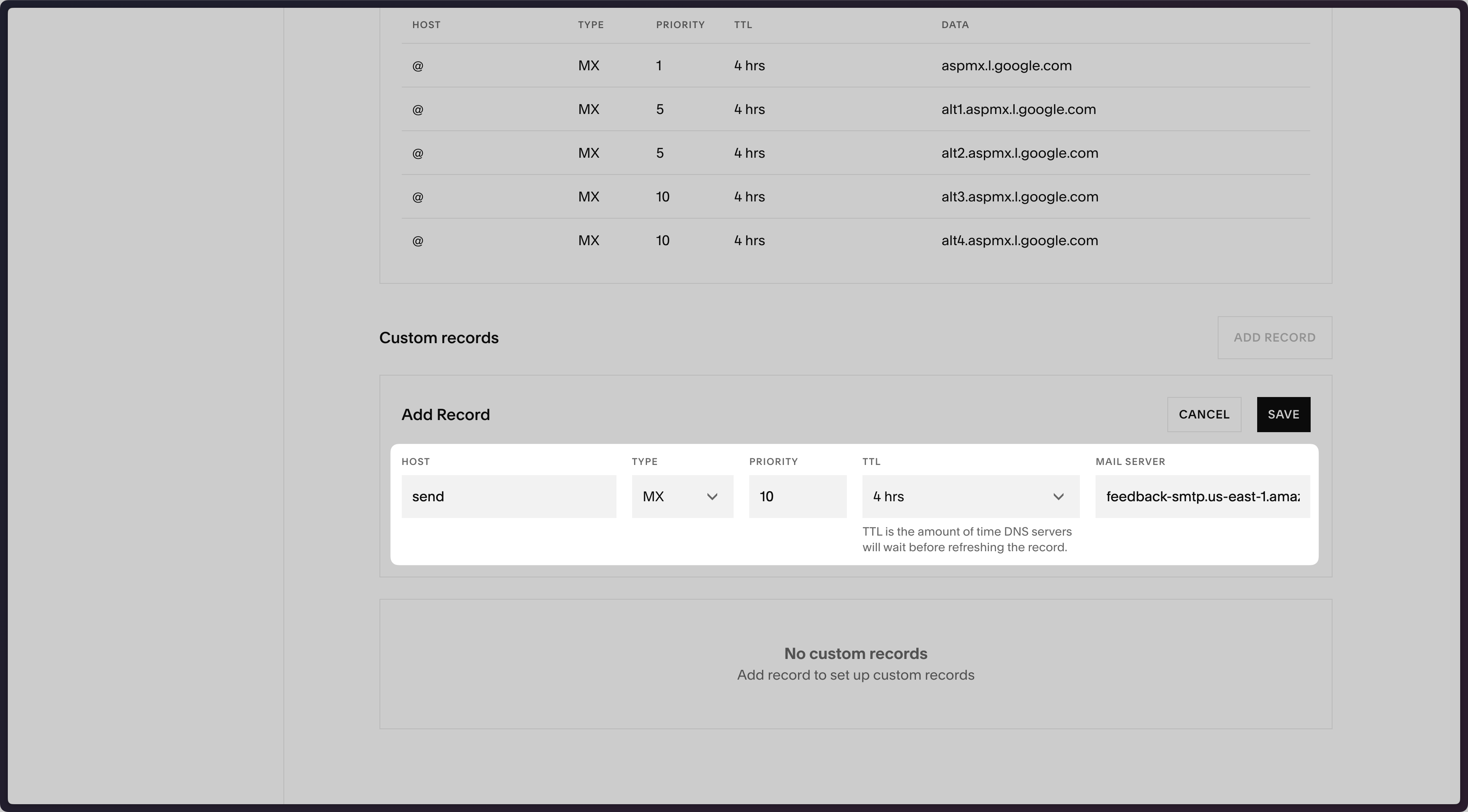
Below is a mapping of the record fields from Resend to Squarespace:
| Squarespace | Resend | Example Value |
|---|---|---|
| Type | Type | MX |
| Host | Name | send |
| TTL | TTL | 4 hrs (default) |
| Mail Server | Content | feedback-smtp.us-east-1.amazonses.com |
| Priority | Priority | 10 |
Add TXT SPF Record
Section titled “Add TXT SPF Record”In the same Custom records section, select Add Record on Squarespace.
- Type
sendfor theHostof the record. - Set the
TypetoTXT. - Use the Default 4 hours for
TTL. - Copy the TXT Value from Resend into the
Textfield - Select
Save.
Add the TXT Record from your domain in Resend to Squarespace and click "Save".
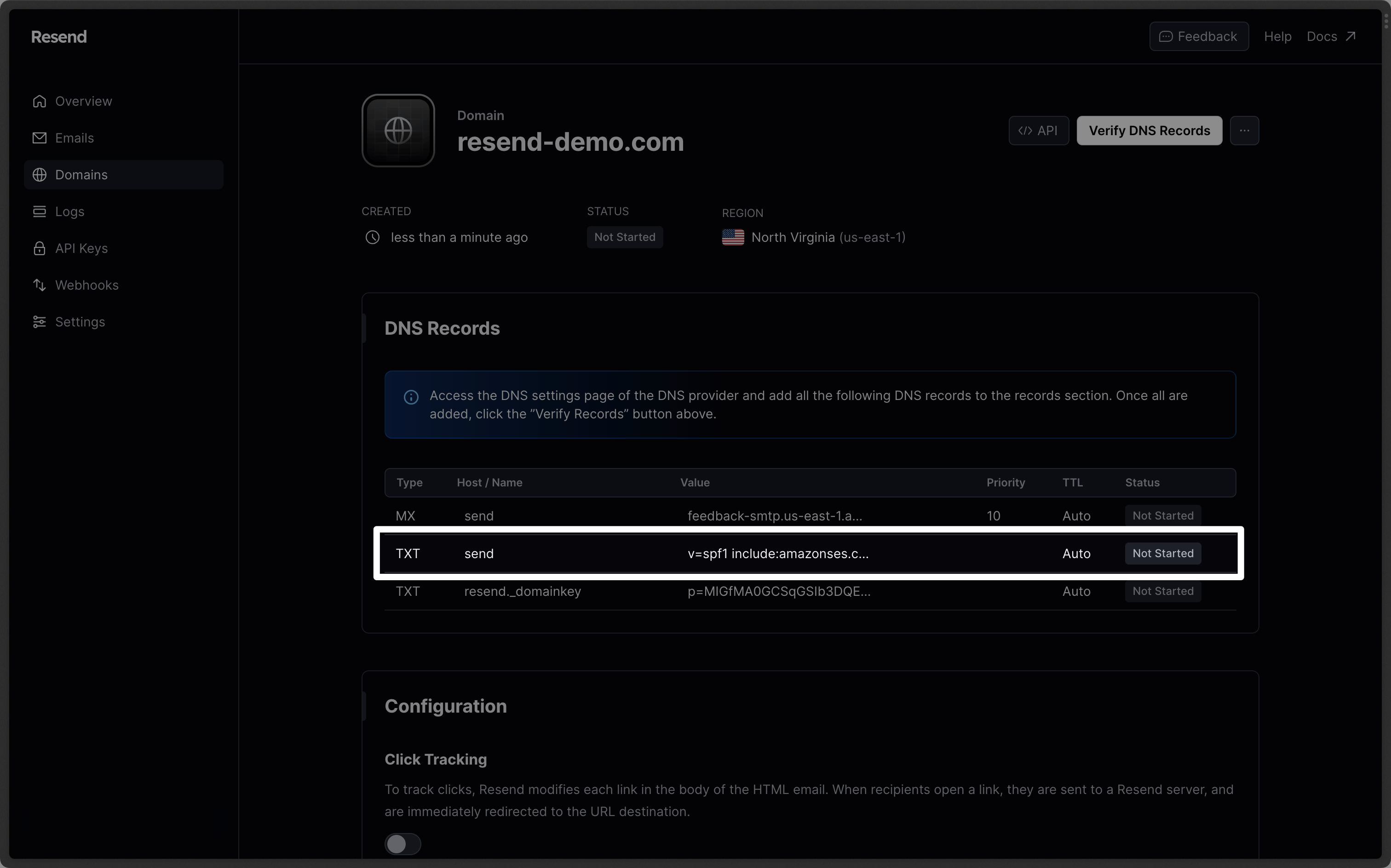
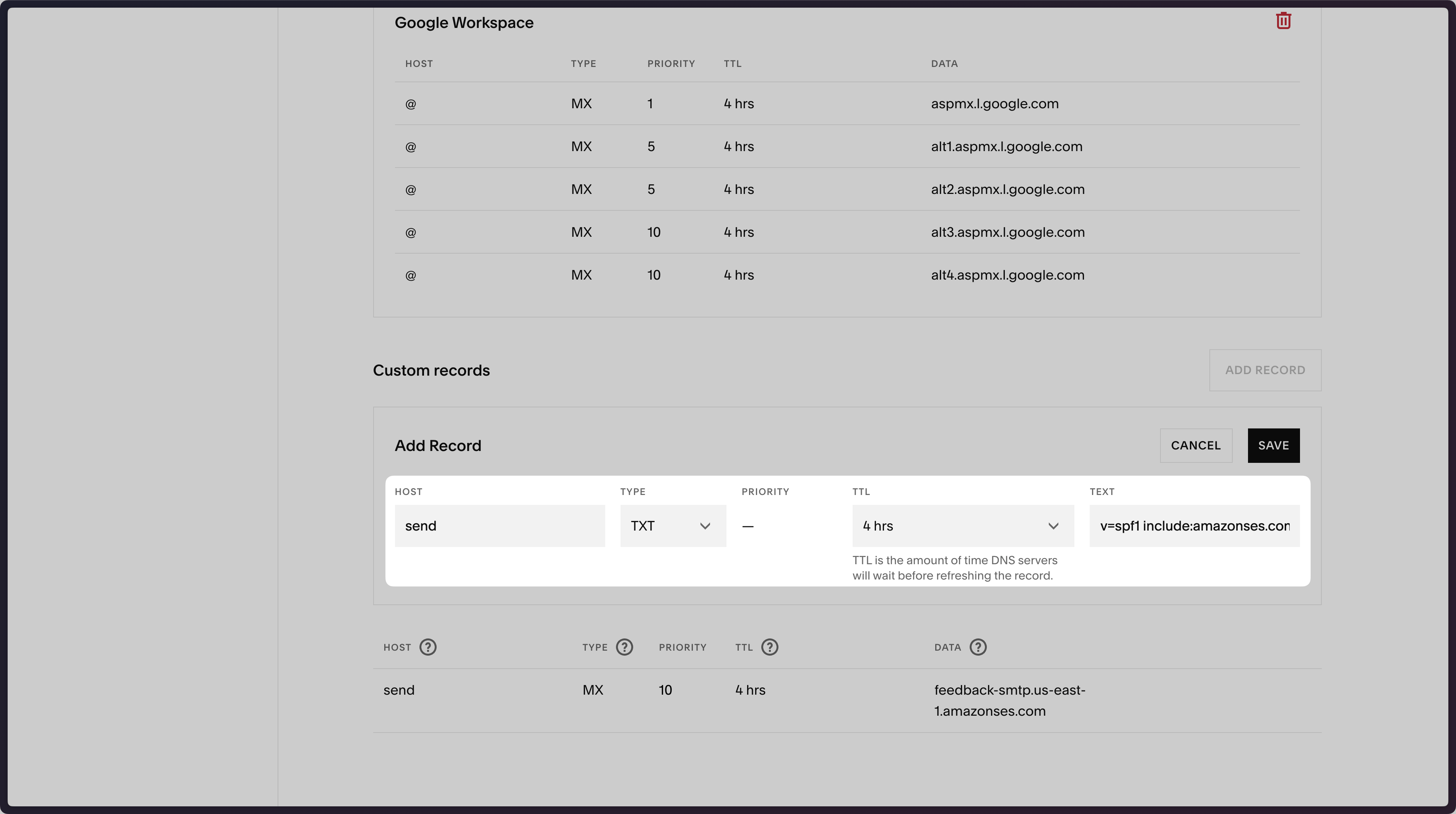
Below is a mapping of the record fields from Resend to Squarespace:
| Squarespace | Resend | Example Value |
|---|---|---|
| Type | Type | TXT |
| Host | Name | send |
| TTL | TTL | 4 hrs (default) |
| Text | Content | "v=spf1 include:amazonses.com ~all" |
Add TXT DKIM Records
Section titled “Add TXT DKIM Records”In the same Custom records section, select Add Record on Squarespace.
- Type
resend._domainkeyfor theHostof the record. - Set the
TypetoTXT. - Use the Default 4 hours for
TTL. - Copy the TXT Value from Resend into the
Textfield - Select
Save.
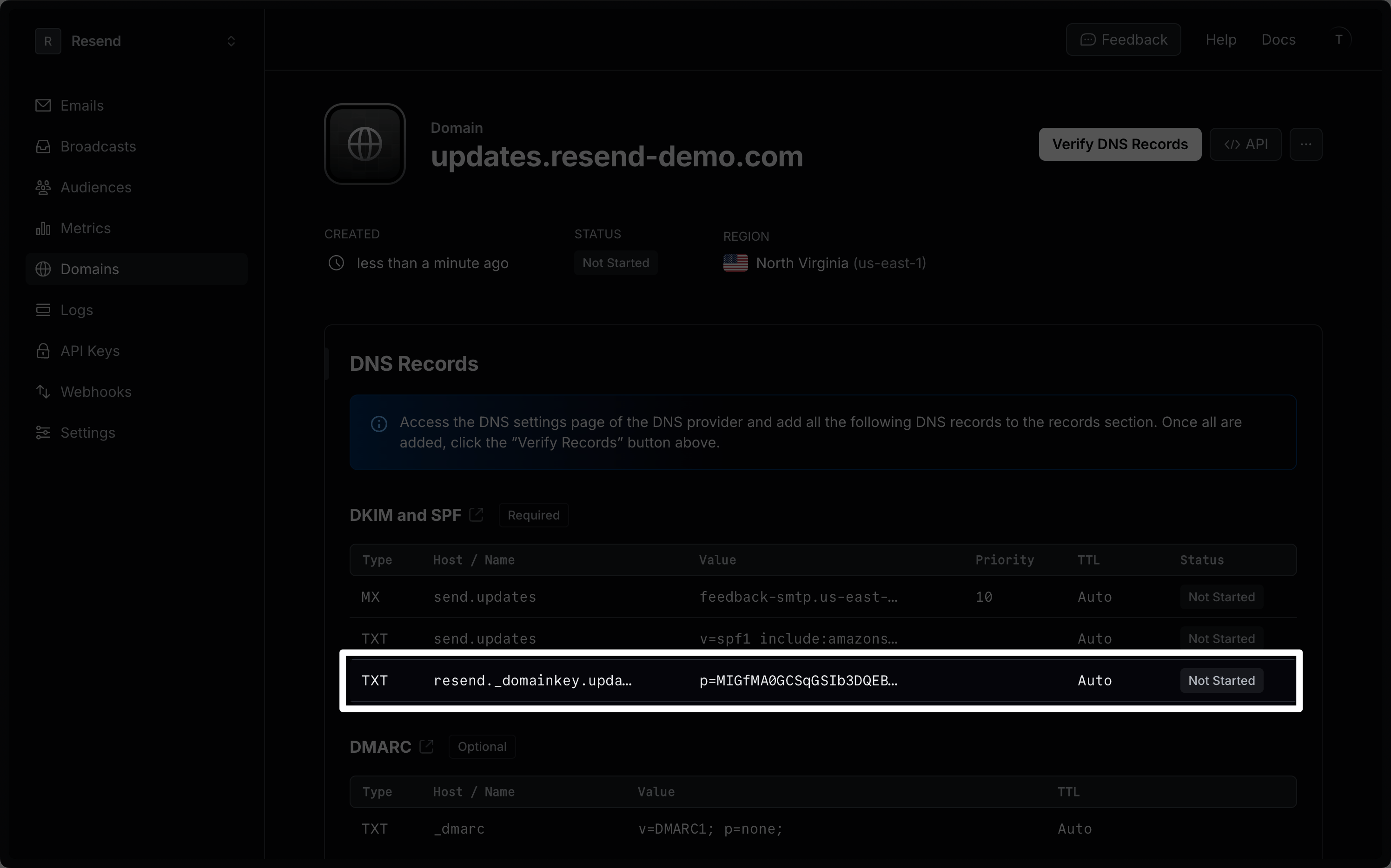
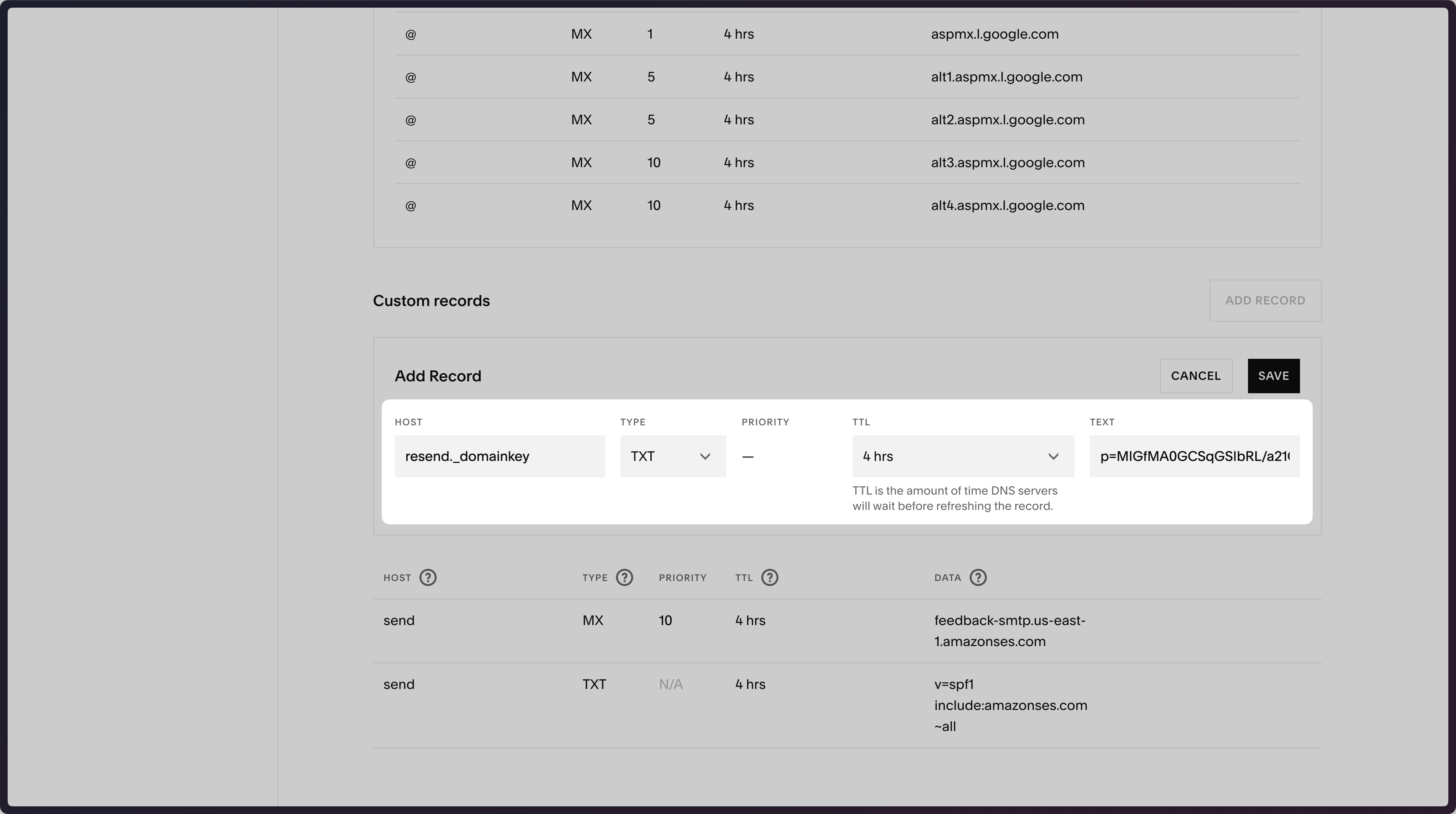
Below is a mapping of the record fields from Resend to Squarespace:
| Squarespace | Resend | Example Value |
|---|---|---|
| Type | Type | TXT |
| Host | Name | resend._domainkey |
| TTL | TTL | 4 hrs (default) |
| Text | Content | p=example_domain_key_value |
Receiving Emails
Section titled “Receiving Emails”If you want to receive emails at your domain, toggle the "Receiving" switch on the domain details page.
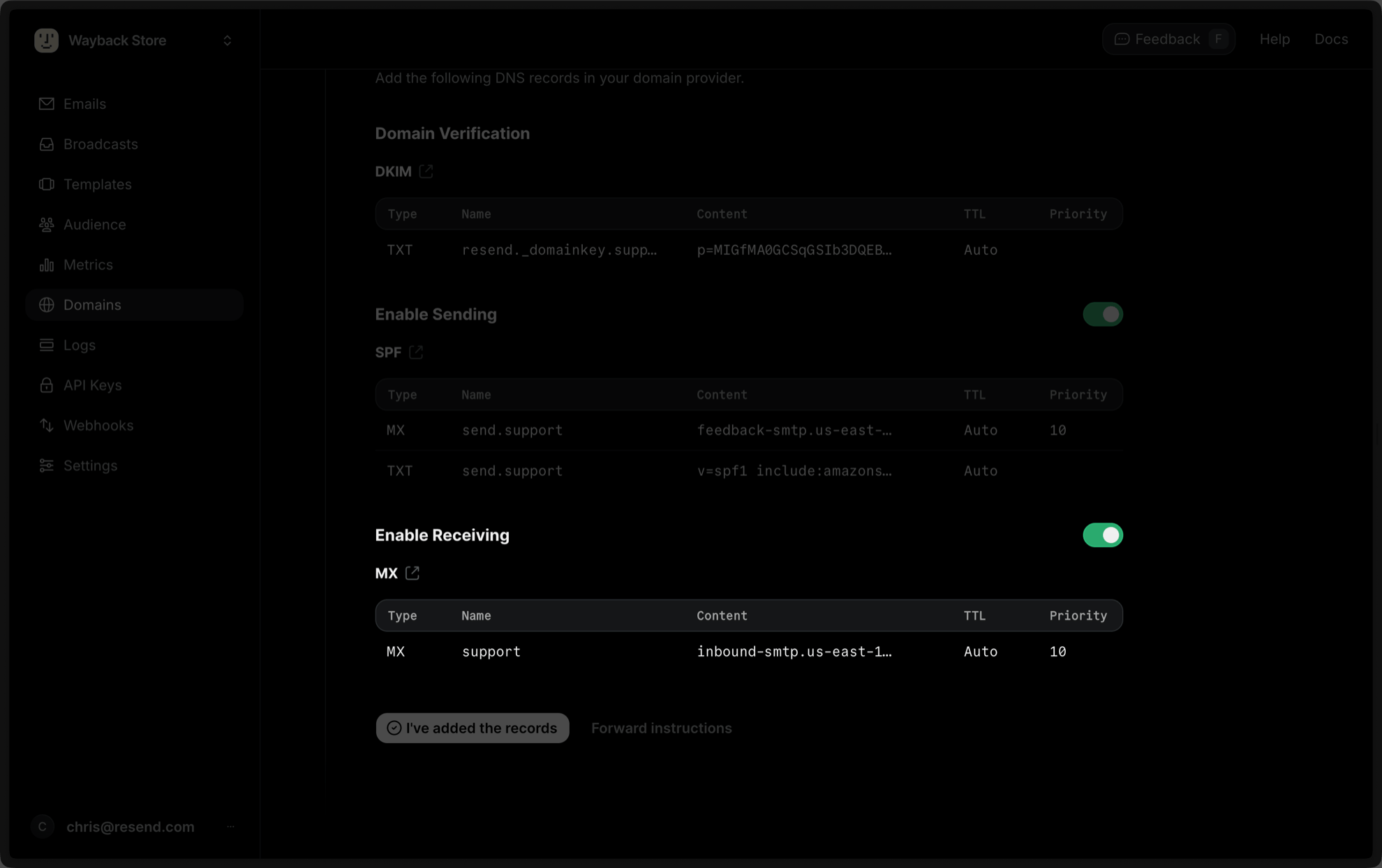
Scroll down to the Custom records section and select Add record on Squarespace:
- Type
inbound(or whatever your subdomain is) for theHostof the record. - Set the
TypetoMX. - Set the
Priorityto10. - Use the Default 4 hours for
TTL. - Copy the MX Value from Resend into the
Mail Serverfield. - Select
Save.
Below is a mapping of the record fields from Resend to Squarespace:
| Squarespace | Resend | Example Value |
|---|---|---|
| Type | Type | MX |
| Host | Name | inbound |
| TTL | TTL | 4 hrs (default) |
| Mail Server | Content | inbound-smtp.us-east-1.amazonaws.com |
| Priority | Priority | 10 |
After verifying your domain, create a webhook to process incoming emails. For help setting up a webhook, how to access email data and attachments, forward emails, and more, see our guide on receiving emails with Resend.
Complete Verification
Section titled “Complete Verification”Now click Verify DNS Records on your Domain in Resend. It may take up to 72 hours to complete the verification process (often much faster).
Troubleshooting
Section titled “Troubleshooting”If your domain is not successfully verified, these are some common troubleshooting methods.
Resend shows my domain verification failed.
Review the records you added to Squarespace to rule out copy and paste errors.