Managing Teams
Resend allows multiple teams to be managed under a single email address. Each team is distinct, with its own API keys, billing, and usage.
Inviting new members to a team
Section titled “Inviting new members to a team”- Navigate to your Team Settings.
- Click Invite. Input an email address and select a role (Admin or Member).
- Members have access to manage emails, domains and webhooks.
- Admins have all Member permissions plus the ability to invite users, update payments, and delete the team.
- The new member will receive an email invitation to join the team.
Add a team avatar
Section titled “Add a team avatar”- Navigate to your Team Settings.
- Click Upload Image next to the avatar placeholders.
- Upload an image file to use as the team avatar.
Switching between teams
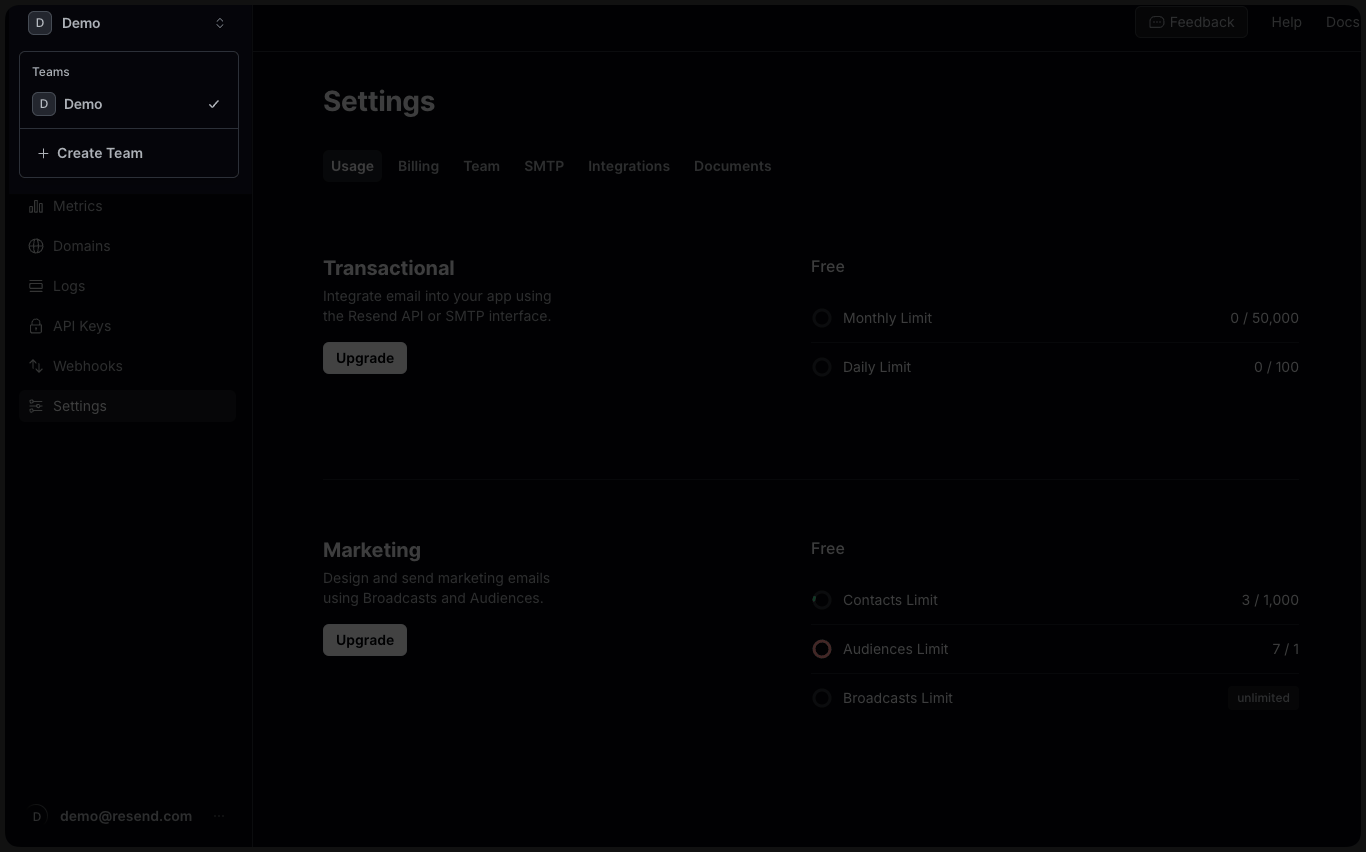
Section titled “Switching between teams”After accepting an invite from the account owner, users can switch between teams:
- Click on the team name in the top left corner of any Resend page.
- A dropdown menu will appear, listing all the teams you belong to.
- Select a team to switch between them.
Change the team member roles
Section titled “Change the team member roles”As an admin of your team, you can change the role of members in your team.
- Navigate to your Team Settings.
- Find the user you want to change.
- Select the more options button and choose Change role.
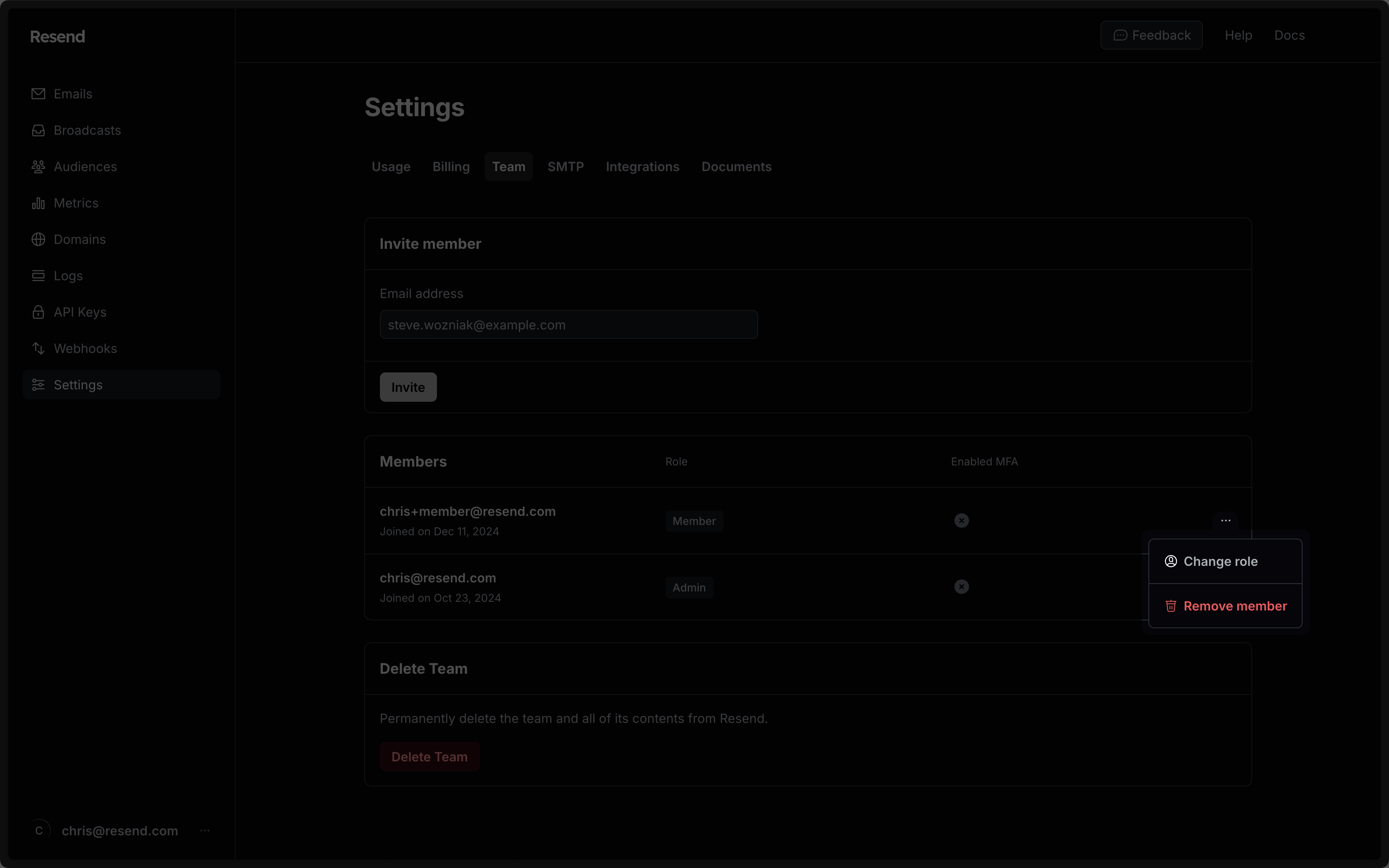
Upon confirmation, your team member will be given the new role.
Check team members' MFA status
Section titled “Check team members' MFA status”The Enabled MFA column on your Team Settings page shows a checkmark next to each member who has multi-factor authentication (MFA) enabled. Every member of the team can see this column, not just admins. There is no setting to require MFA for the whole team. See how to add MFA for how each member enables it on their own account.
Leave your Resend team
Section titled “Leave your Resend team”You can leave your team by following these steps:
- Navigate to your Team Settings.
- Under members, click on next to your name for more options.
- Select the Leave Team button.
Upon confirmation, you will leave your team.