Manage API keys
API keys
Section titled “API keys”API keys are secret tokens used to authenticate your requests. They are unique to your account and must be kept confidential.
You can use multiple keys to isolate different application actions to different API keys. This allows you to view logs per key, detect possible abuse, and control any damage that may be done accidentally or maliciously.
API key management
Section titled “API key management”You can view and manage your API keys from the API keys Dashboard page. You can also manage your API keys programmatically using the API or the Resend CLI:
- Create a new API key with a name, permission, and optional domain restriction
- List all API keys in your account
- Update an API key's name (other properties can only be edited in the Dashboard)
- Delete an API key
View all API keys
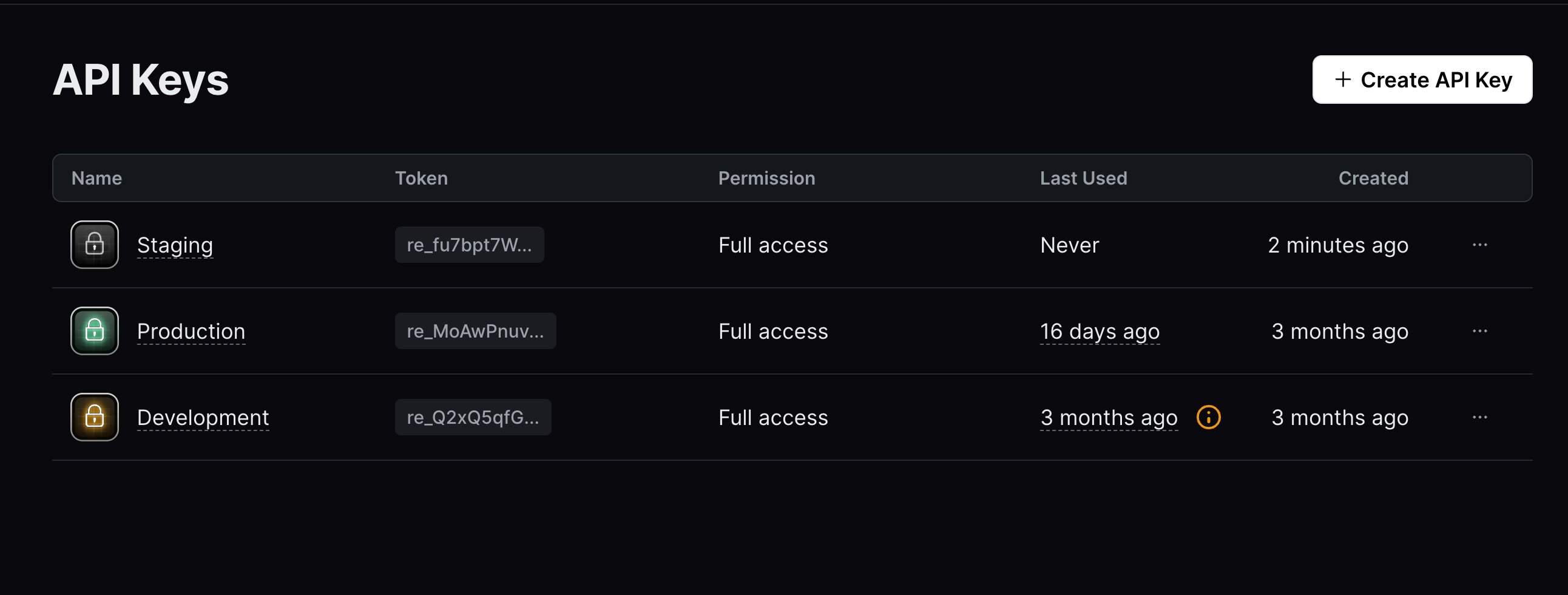
Section titled “View all API keys”The API Dashboard shows you all the API keys you have created along with their details, including the last time you used an API key.
Different color indicators let you quickly scan and detect which API keys are being used and which are not.
Edit API key details
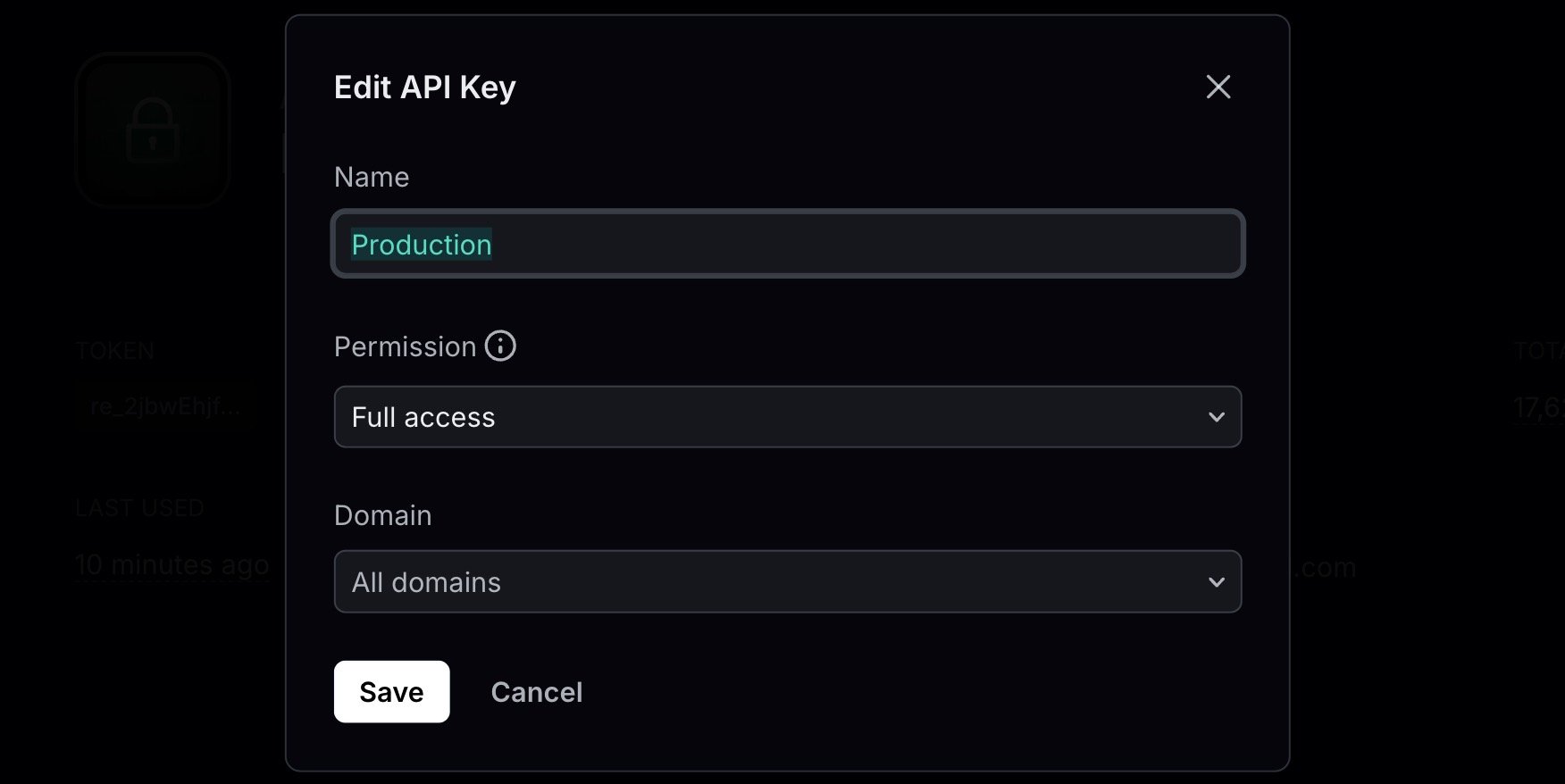
Section titled “Edit API key details”After creating an API key, you can edit the following details:
To edit an API key in the Resend Dashboard, click the More options button and then Edit API key.
You can also rename an API key programmatically using the Update API key endpoint. The API only updates the key's name, while permission and domain can only be edited in the Dashboard.
Delete inactive API keys
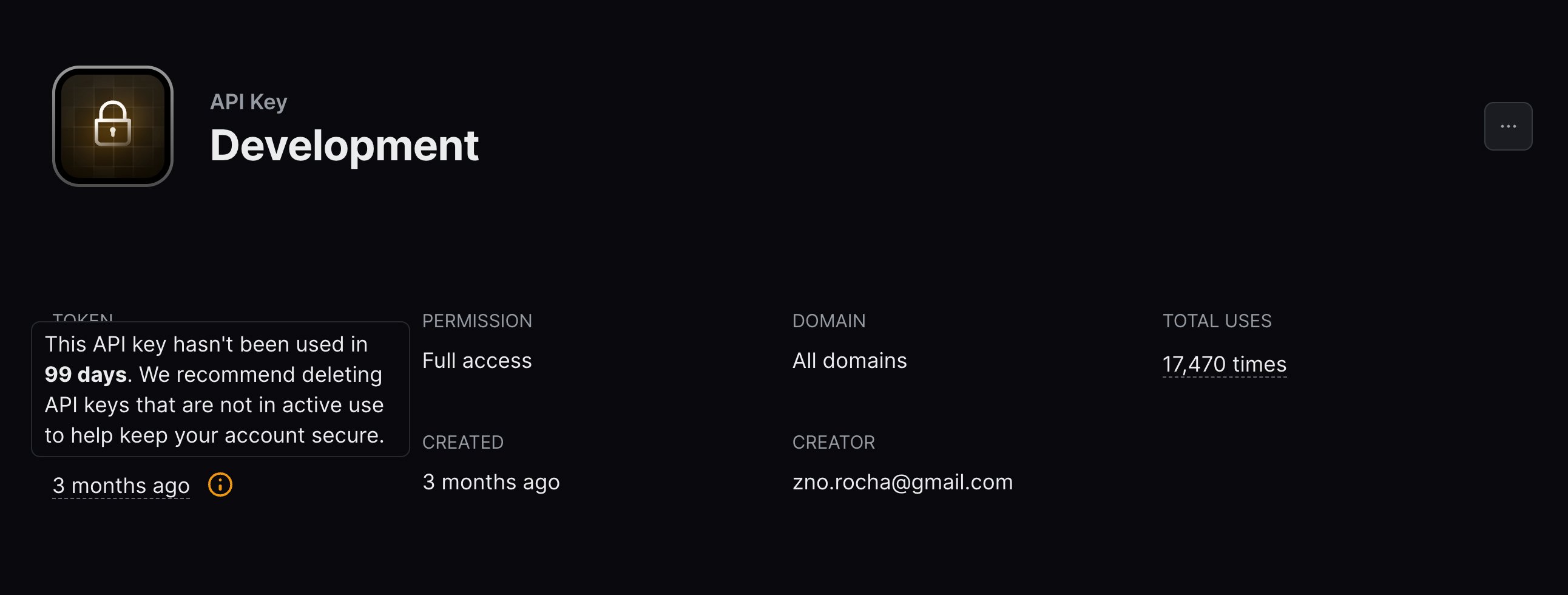
Section titled “Delete inactive API keys”If an API key hasn't been used in the last 30 days, consider deleting it to keep your account secure.
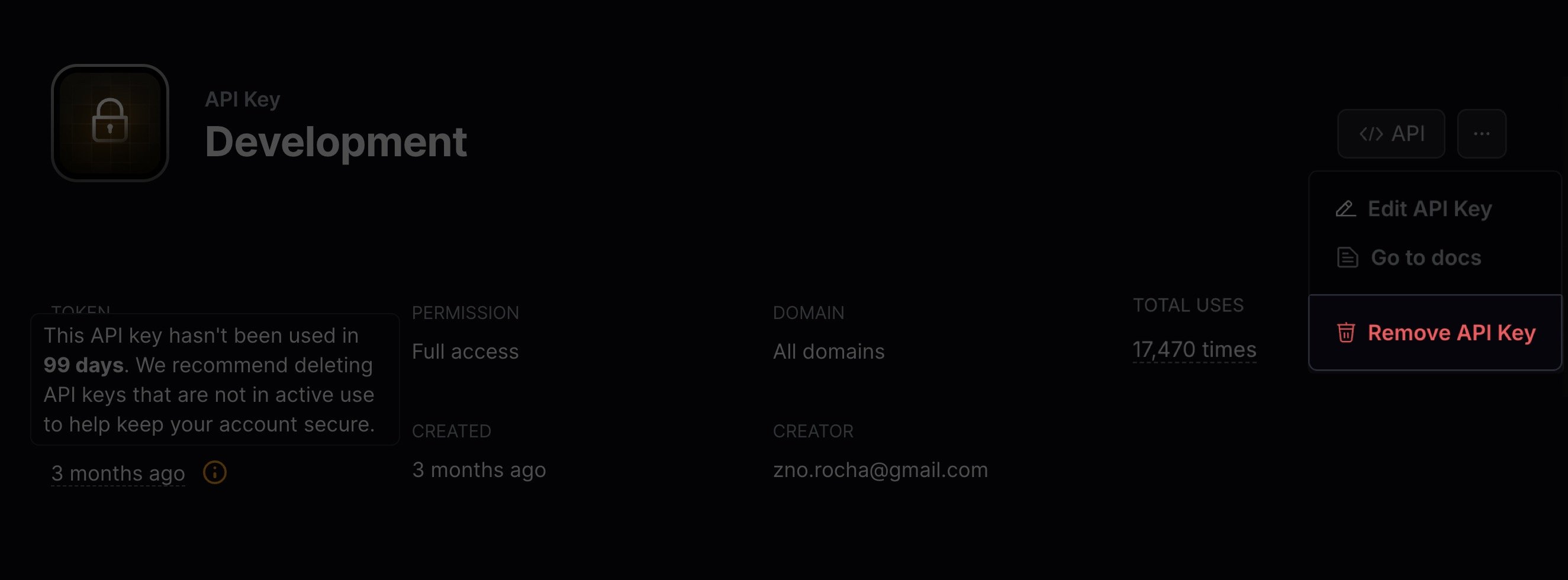
You can delete an API key by clicking the More options button and then Remove API key.
View API key logs
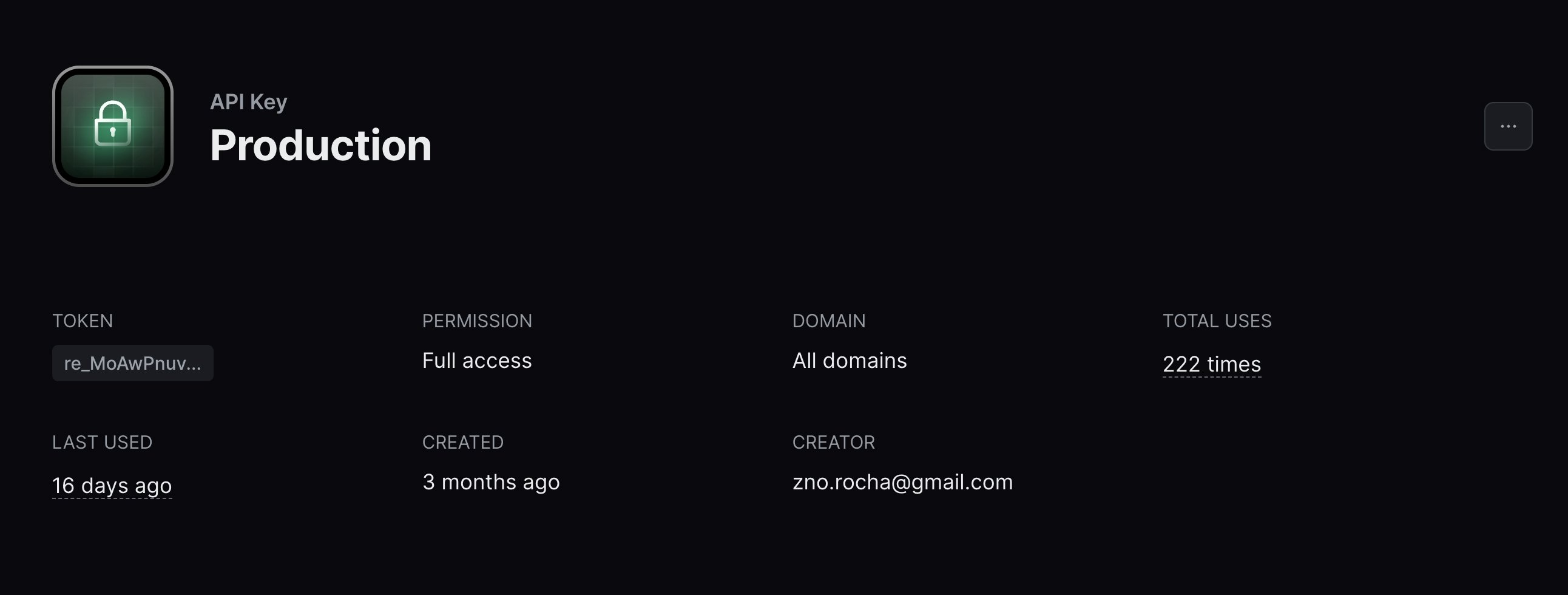
Section titled “View API key logs”When visualizing an active API key, you can see the total number of requests made to the key. For more detailed logging information, select the underlined number of requests to view all logs for that API key.
Export your data
Section titled “Export your data”Admins can download your data in CSV format for the following resources:
- Emails
- Broadcasts
- Contacts
- Segments
- Domains
- Logs
- API keys
To start, apply filters to your data and click on the "Export" button. Confirm your filters before exporting your data.
If your exported data includes 1,000 items or less, the export will download immediately. For larger exports, you'll receive an email with a link to download your data.
All admins on your team can securely access the export for 7 days. Unavailable exports are marked as "Expired."