Turn Paper designs into Resend emails
Paper is a design tool built for AI agents. Its MCP server lets agents read your canvas, including layout, styles, copy, and screenshots. Combined with the Resend MCP server, your agent can take a design straight from Paper and turn it into a ready-to-send Template or Broadcast in your Resend account.
The flow looks like this:
- You design an email in Paper.
- Your agent reads the design through the Paper MCP server.
- Your agent converts the design into email-safe HTML using the Resend MCP server and agent skills.
- Your agent creates a Template or Broadcast in Resend
Prerequisites
Section titled “Prerequisites”Before you start, make sure you have:
- The Paper Desktop app installed with a file open (opening a file starts the Paper MCP server automatically)
- A Resend account with a verified domain
- An MCP client like Claude Code, Cursor, or Claude Desktop
Connect the Paper MCP server
Paper Desktop runs a local MCP server at
http://127.0.0.1:29979/mcpwhenever a file is open.Install the official Paper plugin (recommended):
Bash /plugin marketplace add paper-design/agent-plugins /plugin install paper-desktop@paperOr add the MCP server directly:
Bash claude mcp add paper --transport http http://127.0.0.1:29979/mcp --scope userInstall the official Paper plugin (recommended):
Bash codex plugin marketplace add paper-design/agent-plugins /pluginsSelect the
paper-design/agent-pluginsmarketplace and install thepaper-desktopplugin.Run
/add-plugin paper-desktopin the agent panel, or search for "Paper" in the Cursor Marketplace.Open Claude Desktop settings > "Developer" tab > "Edit Config".
JSON { "mcpServers": { "paper": { "command": "npx", "args": ["mcp-remote", "http://127.0.0.1:29979/mcp"] } } }See the Paper MCP docs for other clients.
Connect the Resend MCP server
Connect to Resend's hosted MCP server at
https://mcp.resend.com/mcp. When you connect, your client opens a browser window to log in to Resend and approve access.Bash claude mcp add --transport http resend https://mcp.resend.com/mcpThen run
/mcpin Claude Code and select resend to complete the OAuth login.Bash codex mcp add resend --url https://mcp.resend.com/mcpOpen the command palette and choose "Cursor Settings" > "MCP" > "Add new global MCP server".
JSON { "mcpServers": { "resend": { "url": "https://mcp.resend.com/mcp" } } }Open Settings > Connectors > Add custom connector and enter:
https://mcp.resend.com/mcpFor more clients and configuration options, including running the server locally, see the MCP Server overview.
Design your email in Paper
Design your email as an artboard in Paper. A few tips for designs that translate well to email:
- Use a single-column layout around 600px wide.
- Use real copy instead of placeholder text.
- Use web-safe fonts like
System Sans-SeriforSystem Serif. - Use PNG or JPG images instead of SVGs (not supported in email).
Ask your agent to create an email
You can create either a Template or a Broadcast.
To create a template, select an artboard in Paper and with both servers connected, prompt your agent with the following:
text Look at the selected artboard in Paper and recreate it as an email template in Resend. Convert the design to email-safe HTML (inline styles, table-based layout) using the Resend agent skills. Provide a name, subject, and preview text for the template that fits the content. Publish the template.Behind the scenes, the agent will:
- Call Paper's
get_selectionandget_screenshotto see the design. - Call Paper's
get_jsxorget_computed_stylesto read the exact layout, colors, and copy. - Convert the output into email-safe HTML.
- Call Resend's
create-templatewith the HTML, name, and subject. - Call Resend's
publish-templateto make it available for sending.
Templates support variables using triple-brace syntax, like
{{{USERNAME}}}. Once published, you can send the template via the Emails API or the dashboard.To create a Broadcast and go from design to a campaign instead:
text Look at the selected artboard in Paper and create a Resend broadcast from it. Convert the design to email-safe HTML using the Resend agent skills. Provide a name, subject, and preview text for the template that fits the content. Create it as a draft, don't send it yet.The agent reads the design the same way, then calls Resend's
create-broadcastwith the HTML, sender, subject, and segment. You can review the draft in the Resend dashboard before sending it yourself.- Call Paper's
Refine in the visual editor
Templates and Broadcasts created by your agent are editable in the Resend dashboard. If you want your agent's content to be fully editable in the visual editor, ask it to use
compose-templateorcompose-broadcastinstead of raw HTML. You'll see the agent appear as a named avatar in the editor while it works, and you can hand-tune the result afterwards.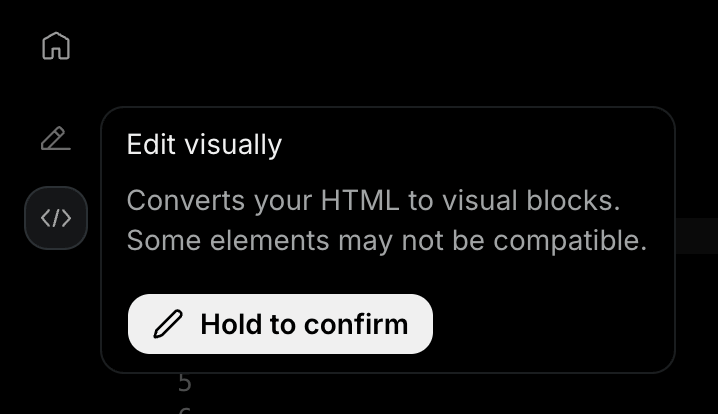
Alternatively, you can edit the Template or Broadcast in the Resend dashboard. Select the Editor icon in the top lefthand corner and Hold to confirm and convert the HTML to a visual template or broadcast.
Example: end-to-end prompt
Section titled “Example: end-to-end prompt”1. Read the "Launch Announcement" artboard from Paper.
2. Convert it to an email-safe HTML email. Preserve the colors, spacing, and
copy as closely as email clients allow. Use the Resend agent skills.
3. Create it as a broadcast in Resend from announcements@example.com to the
"Customers" segment, subject "We just launched".
4. Show me a summary and the dashboard link, but do not send it.Troubleshooting
Section titled “Troubleshooting”- Agent can't reach Paper: make sure Paper Desktop is running with a file open, then restart your agent session.
- Design looks different in the email: email clients don't support modern CSS. Ensure you've installed the Resend's agent skills. Then ask the agent to use table-based layout and inline styles, and to flag anything (like custom fonts or complex gradients) that won't survive the conversion.
create-broadcastfails: check that thefromaddress uses a verified domain and that the segment exists.