Send emails using Supabase with SMTP
Prerequisites
Section titled “Prerequisites”Before you start, you'll need:
- A Resend API key
- A verified domain
Get the Resend SMTP credentials
When configuring your SMTP integration, you'll need to use the following credentials:
- Host:
smtp.resend.com - Port:
465 - Username:
resend - Password:
YOUR_API_KEY
- Host:
Integrate with Supabase SMTP
After logging into your Supabase account, you'll need to enable the SMTP integration.
- Go to your Supabase project
- Click on Authentication in the left sidebar
- Click Email under the Notifications section
- Click SMTP Settings
- Add your Sender email and name (these are required fields). For example:
support@example.comandACME Support.
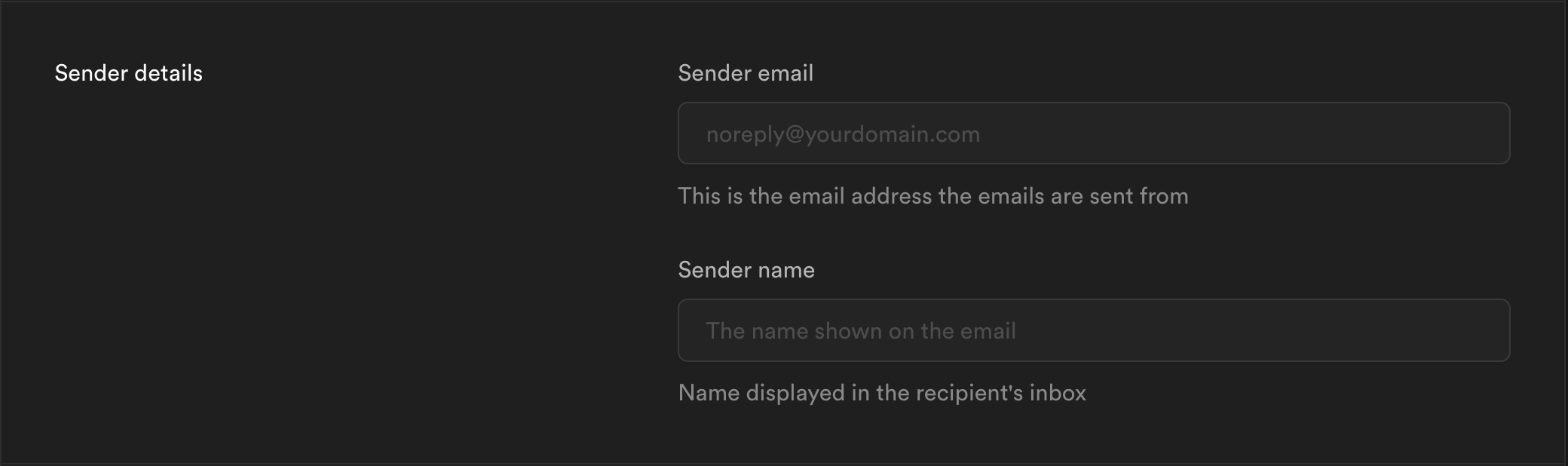
- You can copy-and-paste the SMTP credentials from Resend to Supabase.
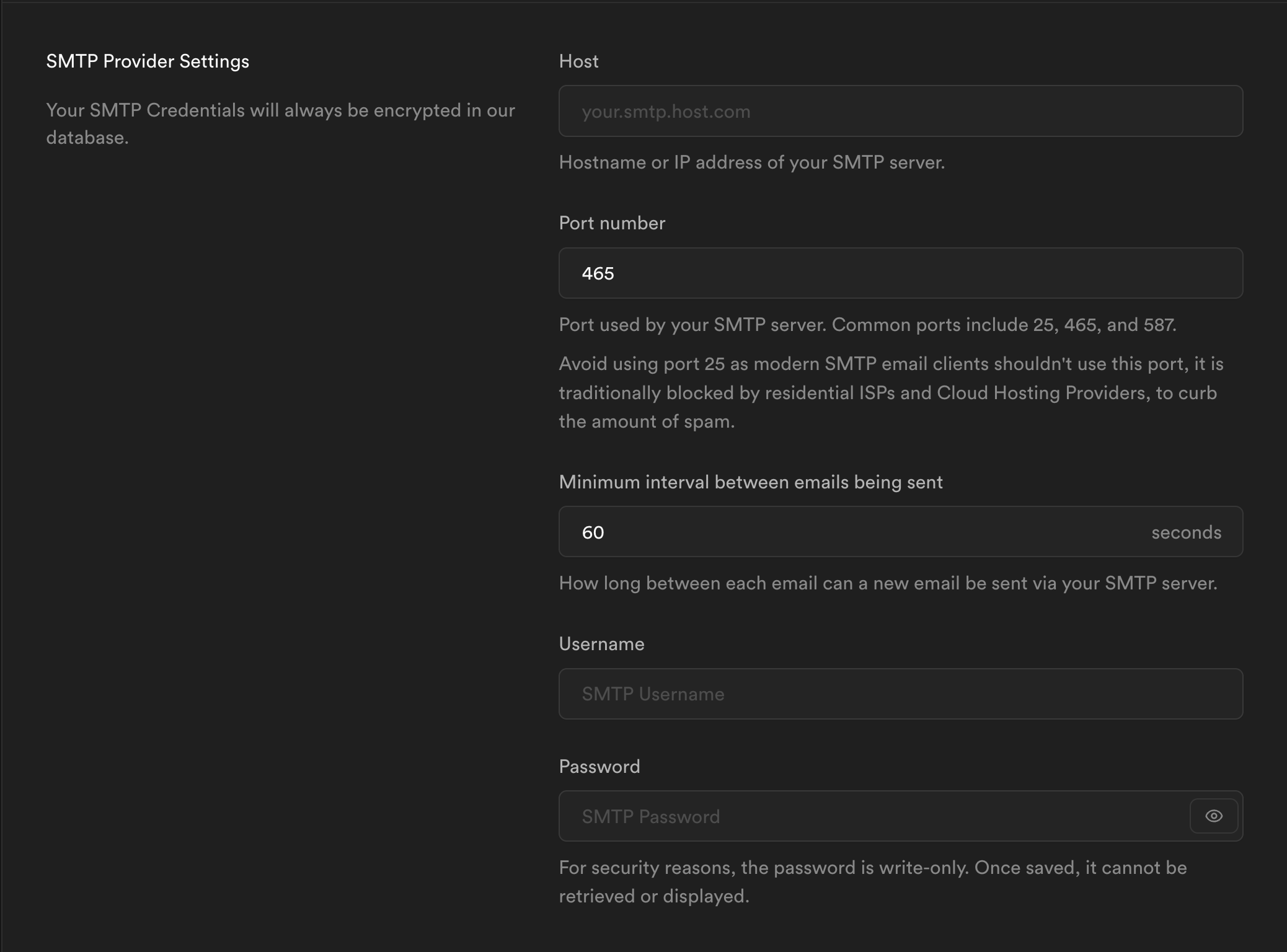
After that, you can click the Save button and all of your emails will be sent through Resend.