Claiming a domain
A domain can only be active on one Resend team at a time. When you try to add a domain that has already been verified by another team, Resend will alert you that the domain is already in use.
-
If you own the team where the domain is registered, delete the domain so you can add it in your desired team.
-
If you do not have access to the team where the domain is registered, you can prove ownership and claim the domain by adding a TXT record to your DNS and then verifying the claim.
Why This Happens
Section titled “Why This Happens”Common reasons a domain you own may already be registered:
- A team member or contractor added it to a separate Resend team.
- You are logged into a different Resend team than the one where the domain was originally added.
Before claiming a domain, check with your team members or in your other teams to see if you can locate the verified domain and transfer it between teams instead.
Claim a domain
Section titled “Claim a domain”Claim a domain by adding a TXT record to your DNS, or do it in one click via DomainConnect for supported registrars.
This record is provided along with the alert in your Dashboard, or when you use the Domains API and call the Claim Domain API endpoint.
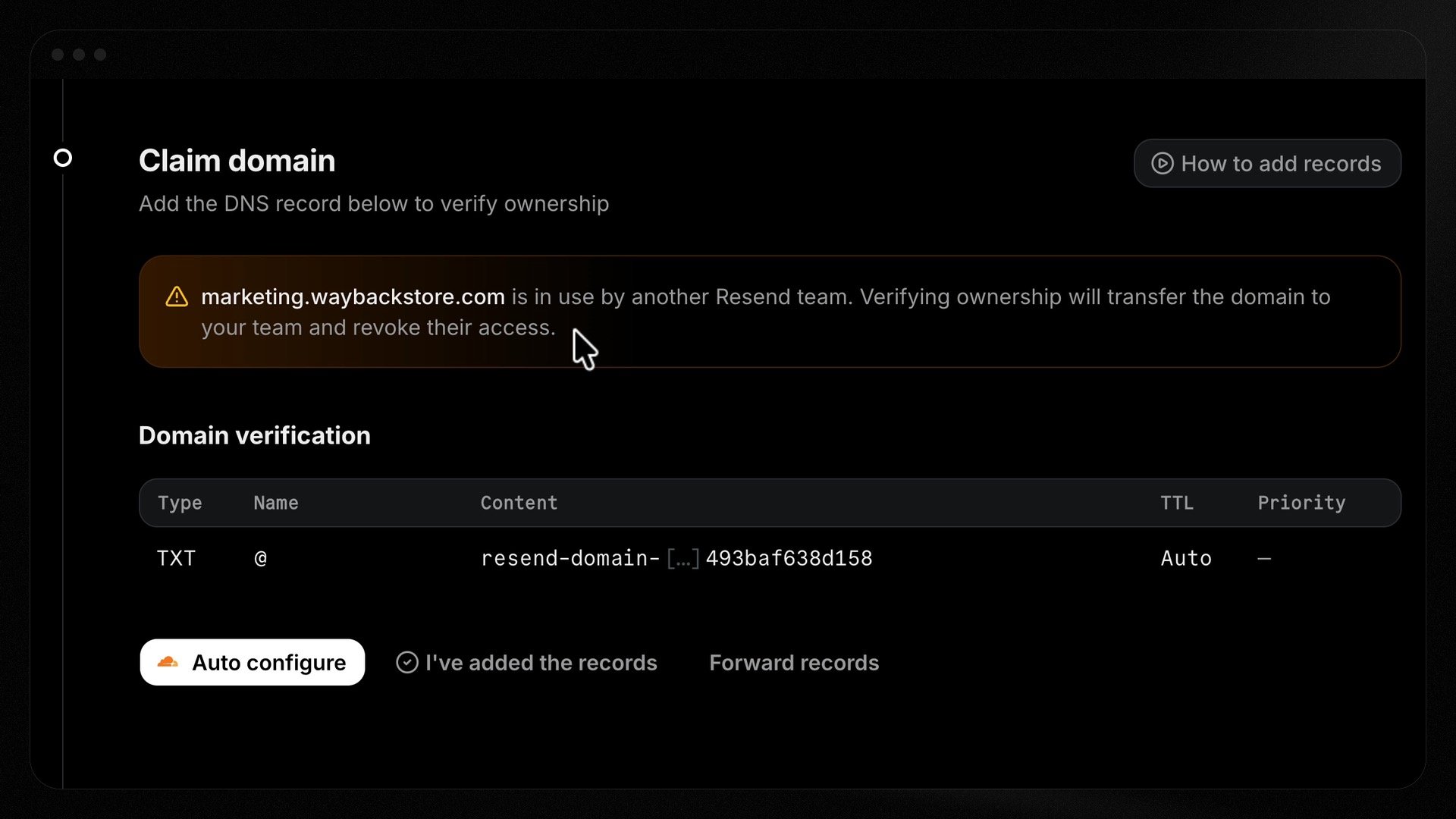
After adding the TXT record, return to the dashboard and click I've added the records.
Resend verifies the domain ownership, releases the domain from the previous team, and shows you the records to add to your DNS for sending or receiving. See the full steps to add a domain.
Using the Domains API
Section titled “Using the Domains API”Start a claim
Call Claim Domain with the domain name. Resend creates a placeholder domain on your team and returns a
domain_claimcontaining a TXTrecordto add to your DNS.Add the TXT record
Add the returned TXT record at your DNS provider. It proves you control the domain.
Verify the claim
Call Verify Domain Claim. Resend checks the TXT record and runs ownership-safety checks before transferring the domain.
Track the status
Poll Retrieve Domain Claim until the claim reaches
completed.
Claim status
Section titled “Claim status”| Status | Meaning |
|---|---|
pending |
Waiting for DNS verification. |
verified |
DNS proof accepted; the transfer is in progress. |
completed |
The domain now belongs to your team. |
blocked |
A safety check blocked the claim — see blocked_reason. |
expired |
The claim window passed before it completed. |
superseded |
A newer claim replaced this one. |
canceled |
The claim was canceled. |
failed |
The claim could not be completed. |
When a claim is blocked, blocked_reason explains why: grace_period,
recent_owner_activity, or pending_scheduled_emails.
Canceling a claim
Section titled “Canceling a claim”Cancel a pending claim initiated with the API by deleting its placeholder domain with
Delete Domain, using the domain_id
from the domain_claim object.
Support
Section titled “Support”If you can't locate your domain in another team, and you are unable to successfully claim the domain, contact Resend support and share the domain name so the team can help you recover access.