Topics
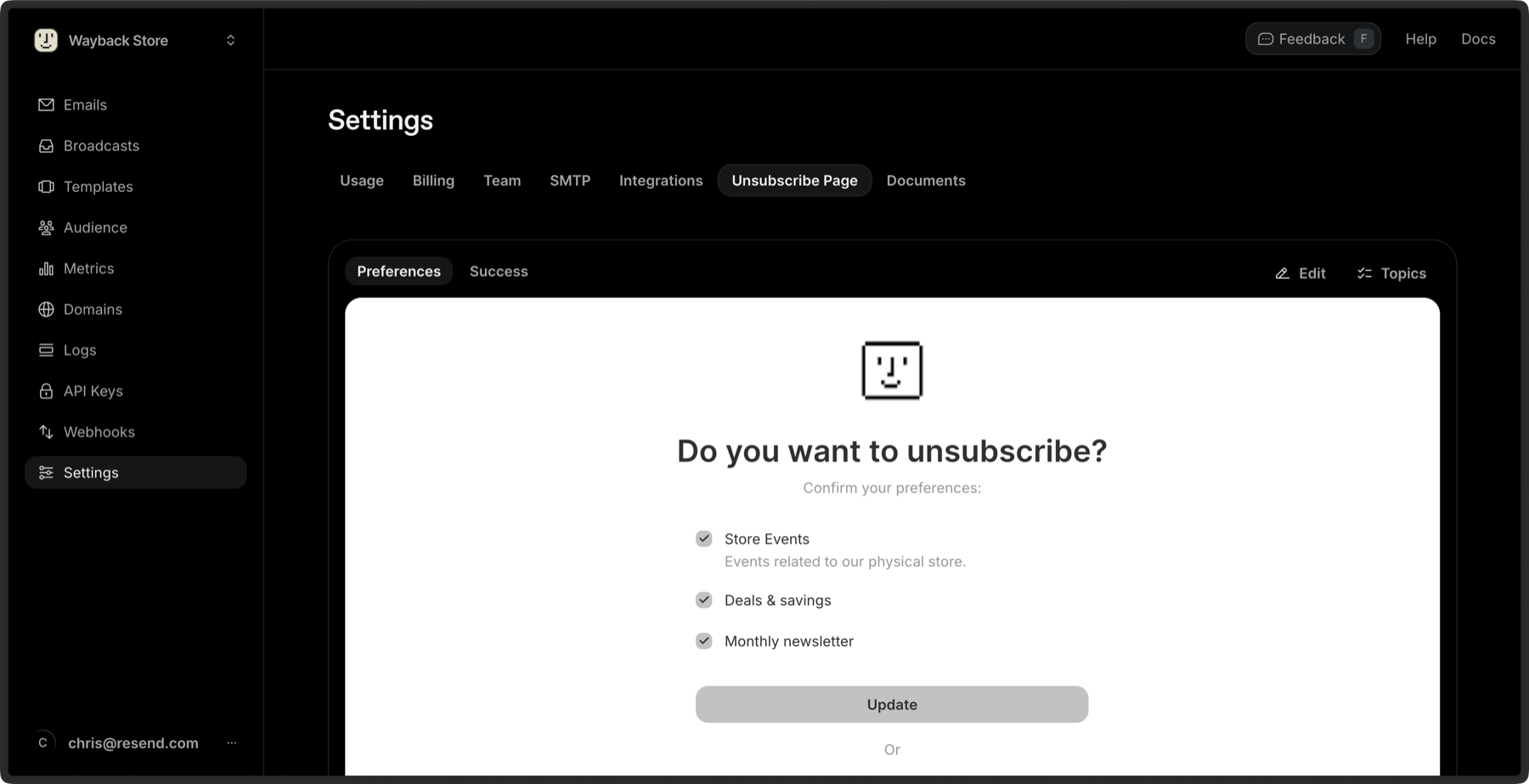
Managing subscribers and unsubscribers is a critical part of any email implementation. Topics are used by your contacts to manage their email preferences.
When you send Broadcasts, you can optionally scope sending to a particular Topic. Not only does scoping your sending help you send more precisely, but it also allows your users to manage their preferences with more control.
Add a Topic
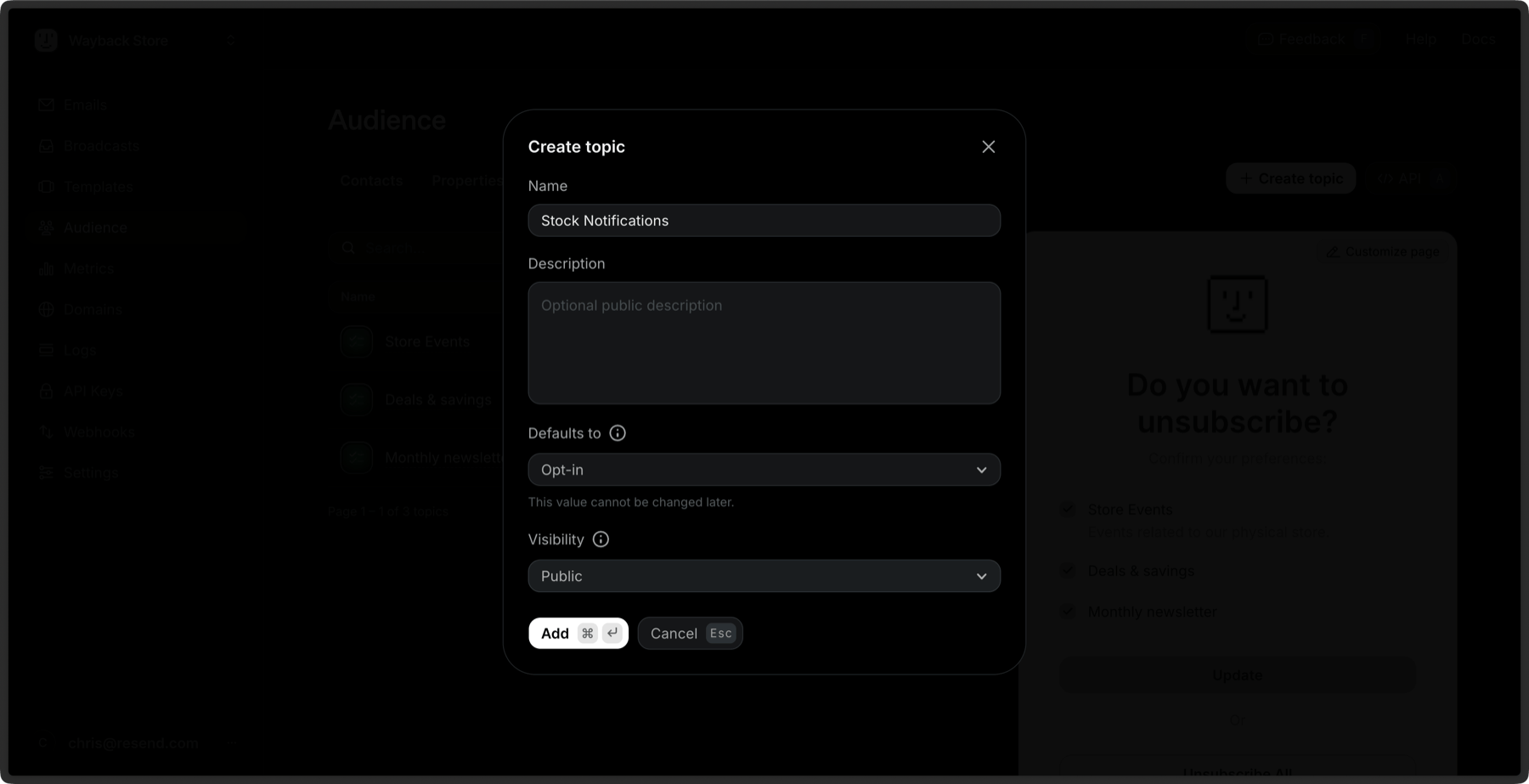
Section titled “Add a Topic”You can create a new Topic from the dashboard or via the API.
- Click Create Topic.
- Give your Topic a name.
- Give your Topic a description (optional).
- Select Opt-in or Opt-out as the default subscription. This value cannot be changed later.
- Opt-in: all Contacts will receive the email unless they have explicitly unsubscribed from that Topic.
- Opt-out: subscribers will not receive the email unless they have explicitly subscribed to that Topic.
- Select Public or Private as the visibility.
- Private: only Contacts who are opted in to the Topic can see it on the unsubscribe page.
- Public: all Contacts can see the Topic on the unsubscribe page.
View all Topics
Section titled “View all Topics”The dashboard shows you all the Topics you have created along with their details.
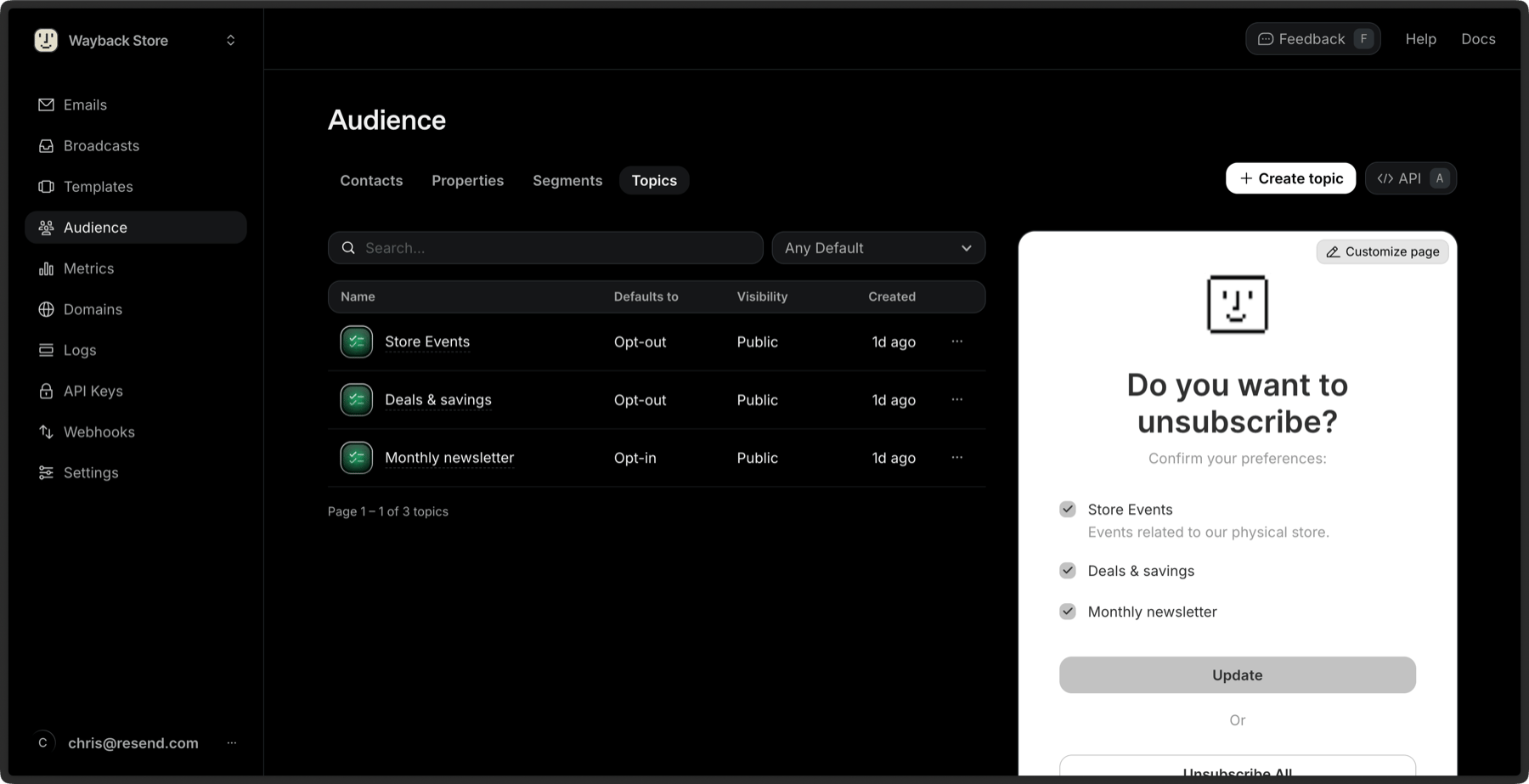
You can also retrieve a single Topic or list all your Topics via the API.
Edit Topic details
Section titled “Edit Topic details”After creating a Topic, you can edit the following details:
- Name
- Description
- Visibility
To edit a Topic, click the More options button and then Edit Topic.
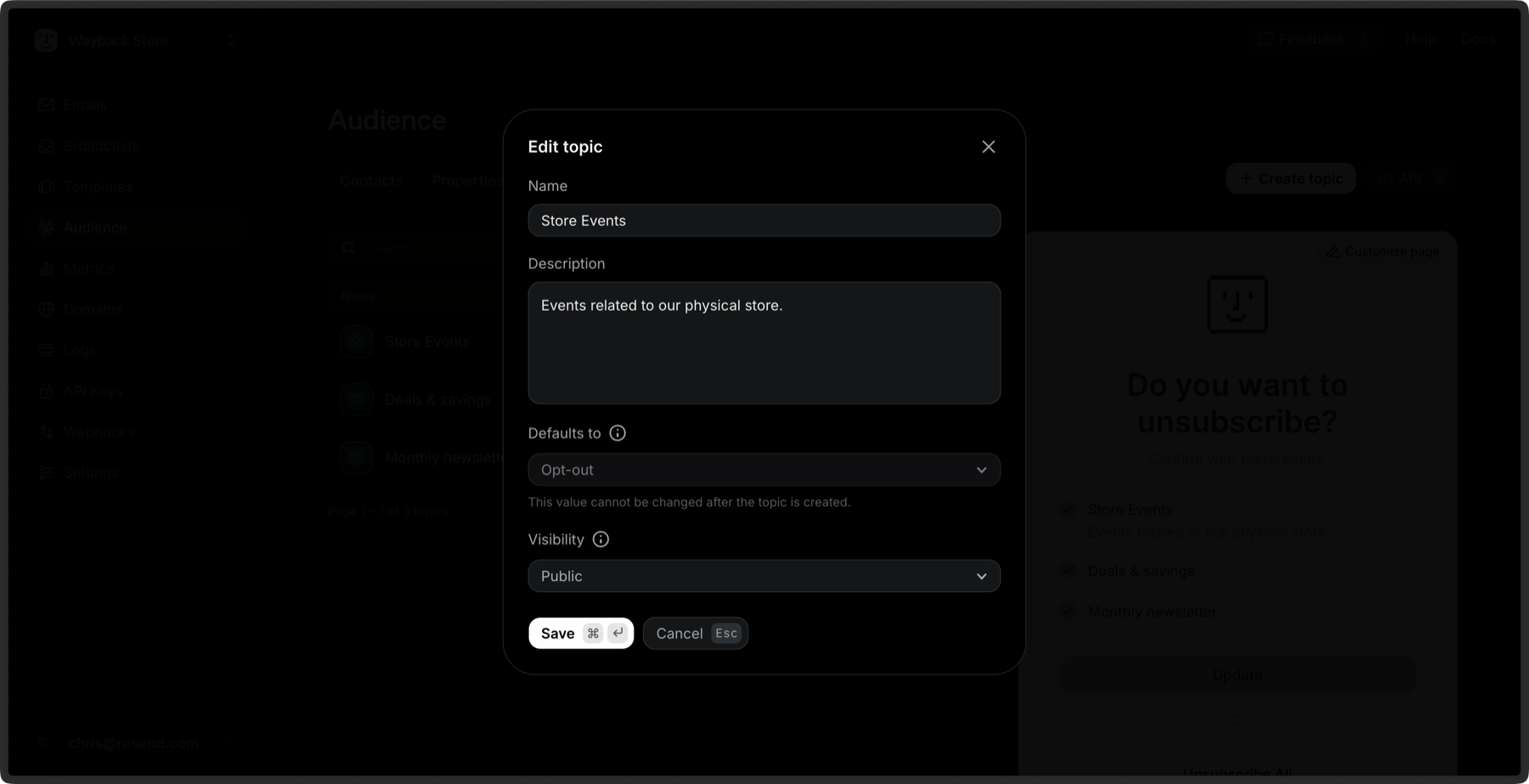
You can also update a Topic via the API.
Delete a Topic
Section titled “Delete a Topic”You can delete a Topic by clicking the More options button and then Remove Topic.
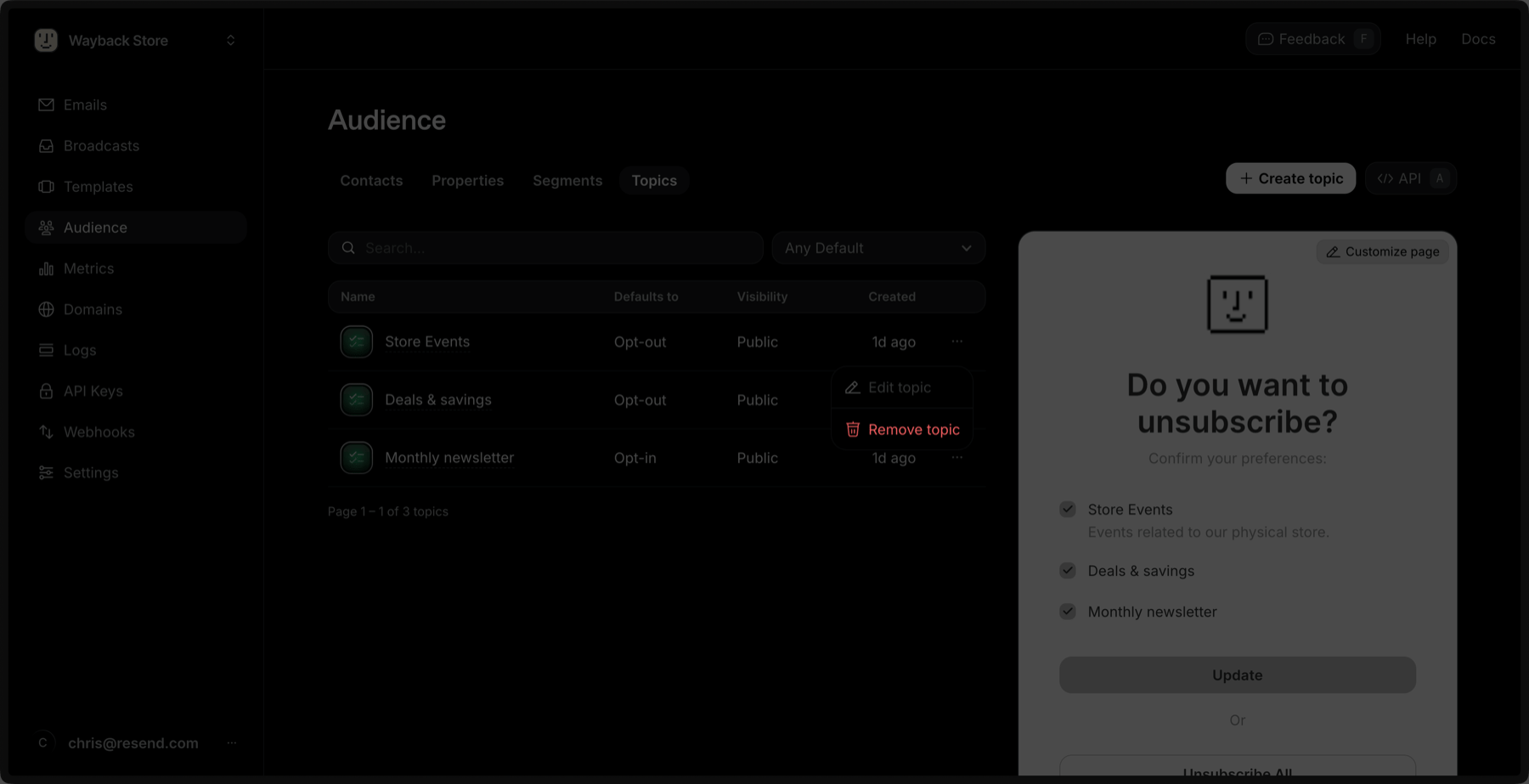
You can also delete a Topic via the API.
Editing Topics for a Contact
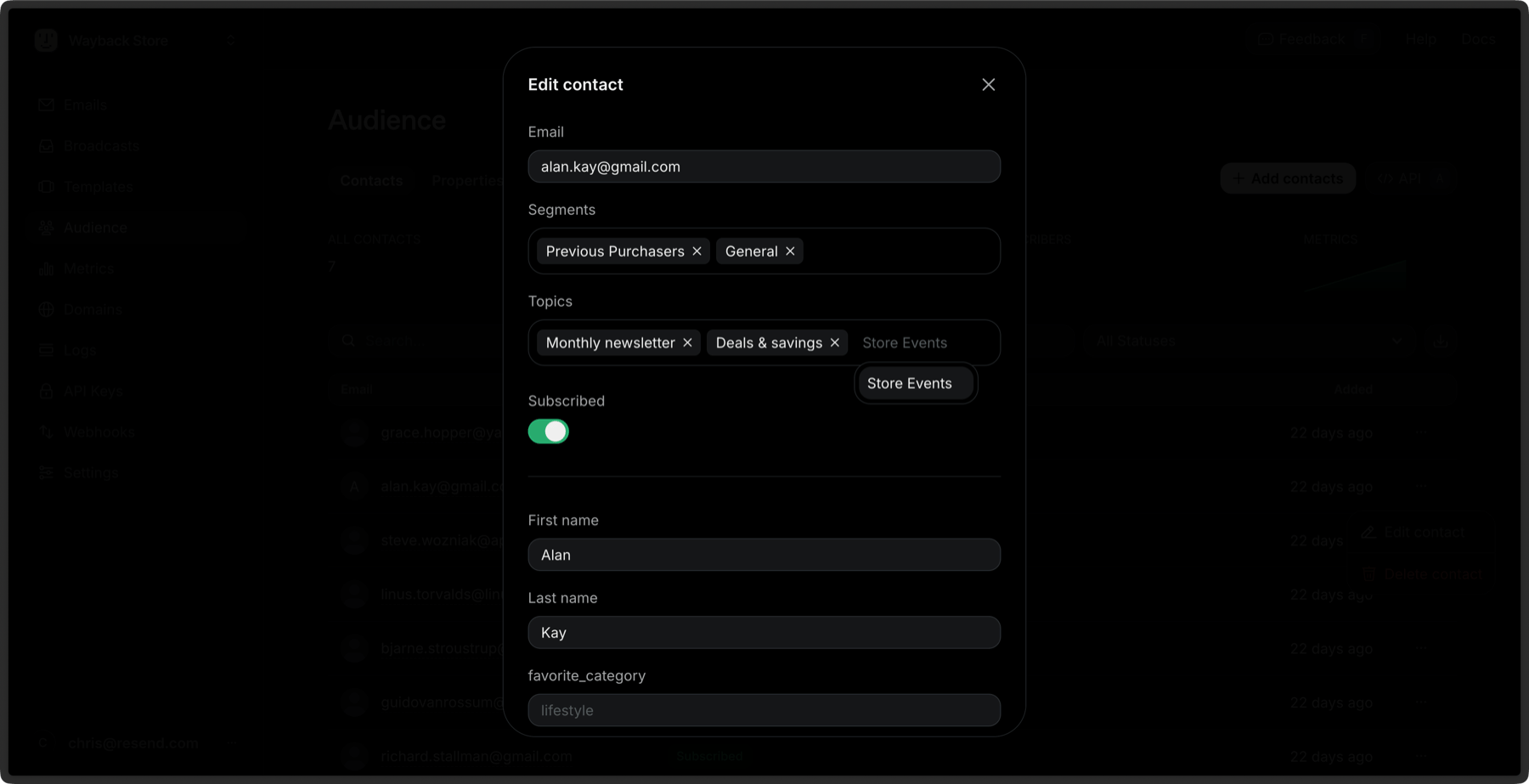
Section titled “Editing Topics for a Contact”As you receive proper consent to email Contacts, add the Contact to a given Topic. A Contact can belong to multiple Topics.
You can add a Contact to a Topic via the dashboard by expanding the More options and then Edit Contact. Add or remove Topics for a given Contact.
Sending Broadcast with a Topic
Section titled “Sending Broadcast with a Topic”You can send with a Topic in the Broadcast editor from the Topics dropdown menu.
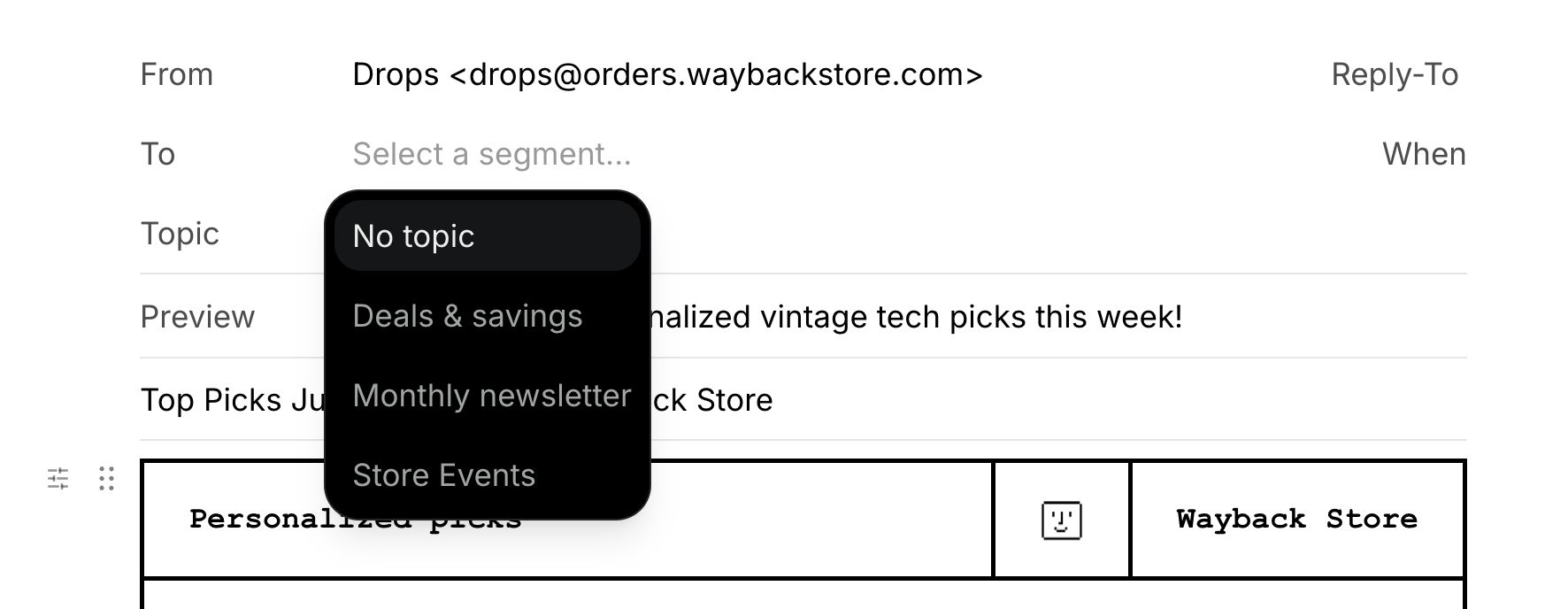
You can also send with a Topic via the Broadcast API.
Unsubscribing from a Topic
Section titled “Unsubscribing from a Topic”If a Contact clicks a Broadcast unsubscribe link, they will see a preference page where they can:
- Unsubscribe from certain Topics (types of email)
- Or unsubscribe from everything you send
If they unsubscribe from a Topic or several Topics, they will no longer receive emails for those Topics. If they unsubscribe from all emails from your account, Broadcasts will no longer send to them.
You can customize your unsubscribe page with your branding from your team settings.