Managing Unsubscribed Contacts
It's essential to update your Contact list when someone unsubscribes to maintain a good sender reputation.
Benefits of managing your unsubscribe list:
- reduces the likelihood of your emails being marked as spam
- improves deliverability for any other marketing or transactional emails you send
When you include an unsubscribe link in your Broadcasts or Automations, Resend will automatically handle the unsubscribe flow for you.
Unsubscribe Statuses
Section titled “Unsubscribe Statuses”The Contacts page shows the global unsubscribe status of each Contact.
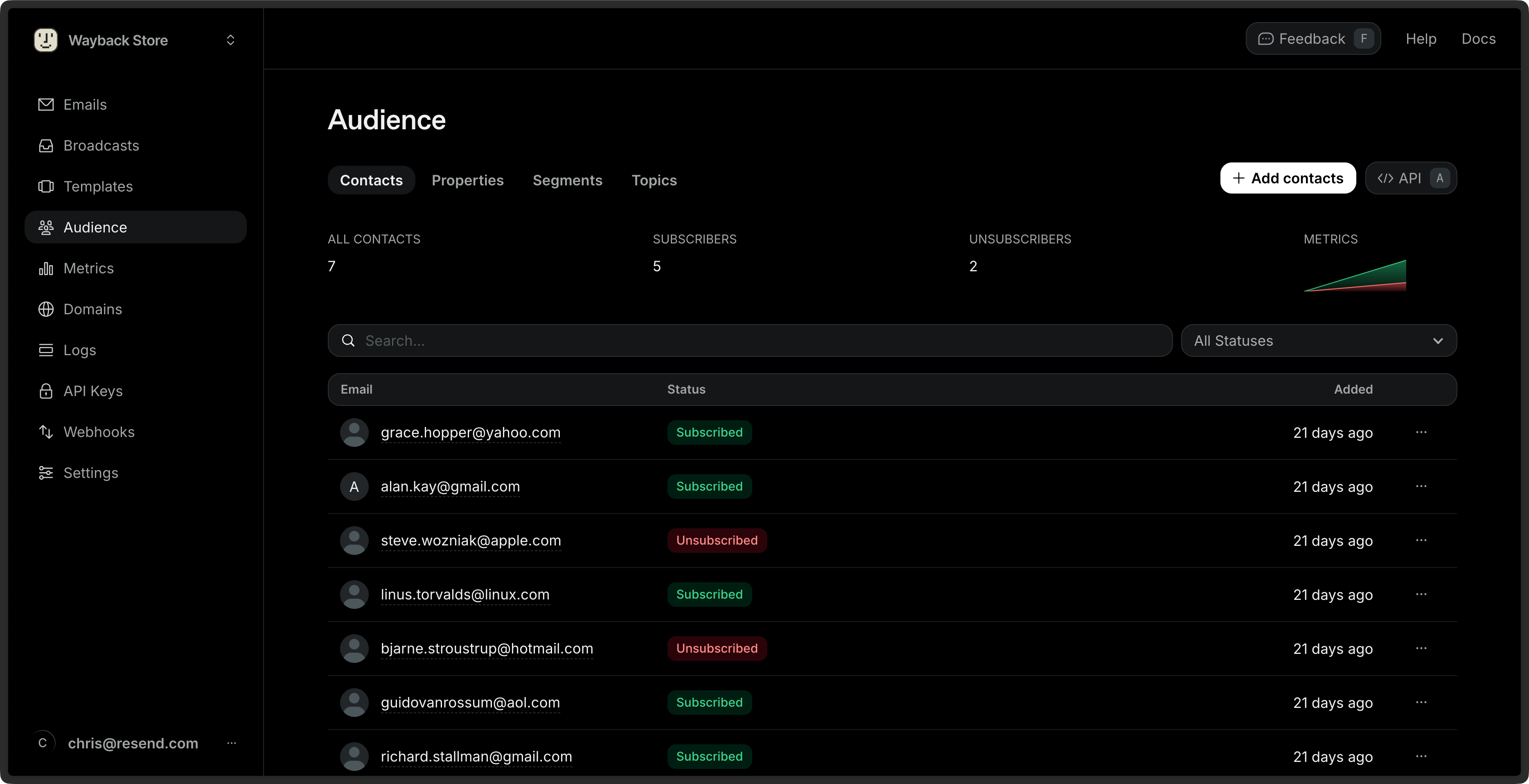
- Unsubscribed: the Contact has unsubscribed from all emails from your account.
- Subscribed: the Contact is subscribed to at least one Topic.
To filter by Status, click on the All Statuses filter next to the search bar, then select a value.
Topic Subscription Statuses
Section titled “Topic Subscription Statuses”You can view the subscription status of each Topic for a given Contact by clicking on the Contact's row.
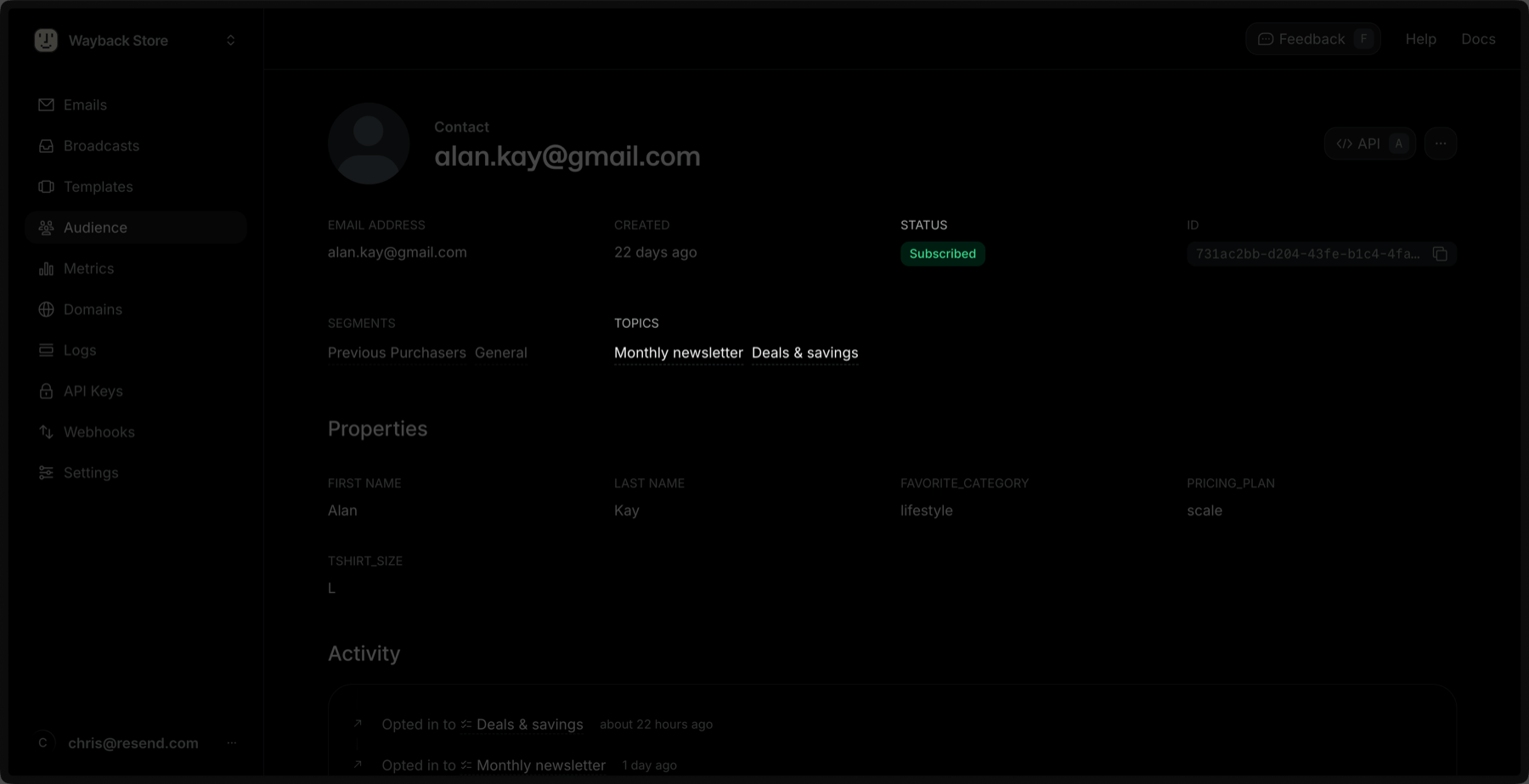
- Subscribed: the global subscription status for the Contact.
- Topics: the list of Topics the Contact is subscribed to.
You can also check a Contact's Topic subscription status via the API or SDKs.
Updating a Topic Subscription for a Contact
Section titled “Updating a Topic Subscription for a Contact”You can update a Topic subscription for a Contact by clicking the Edit button in the Topic's row.
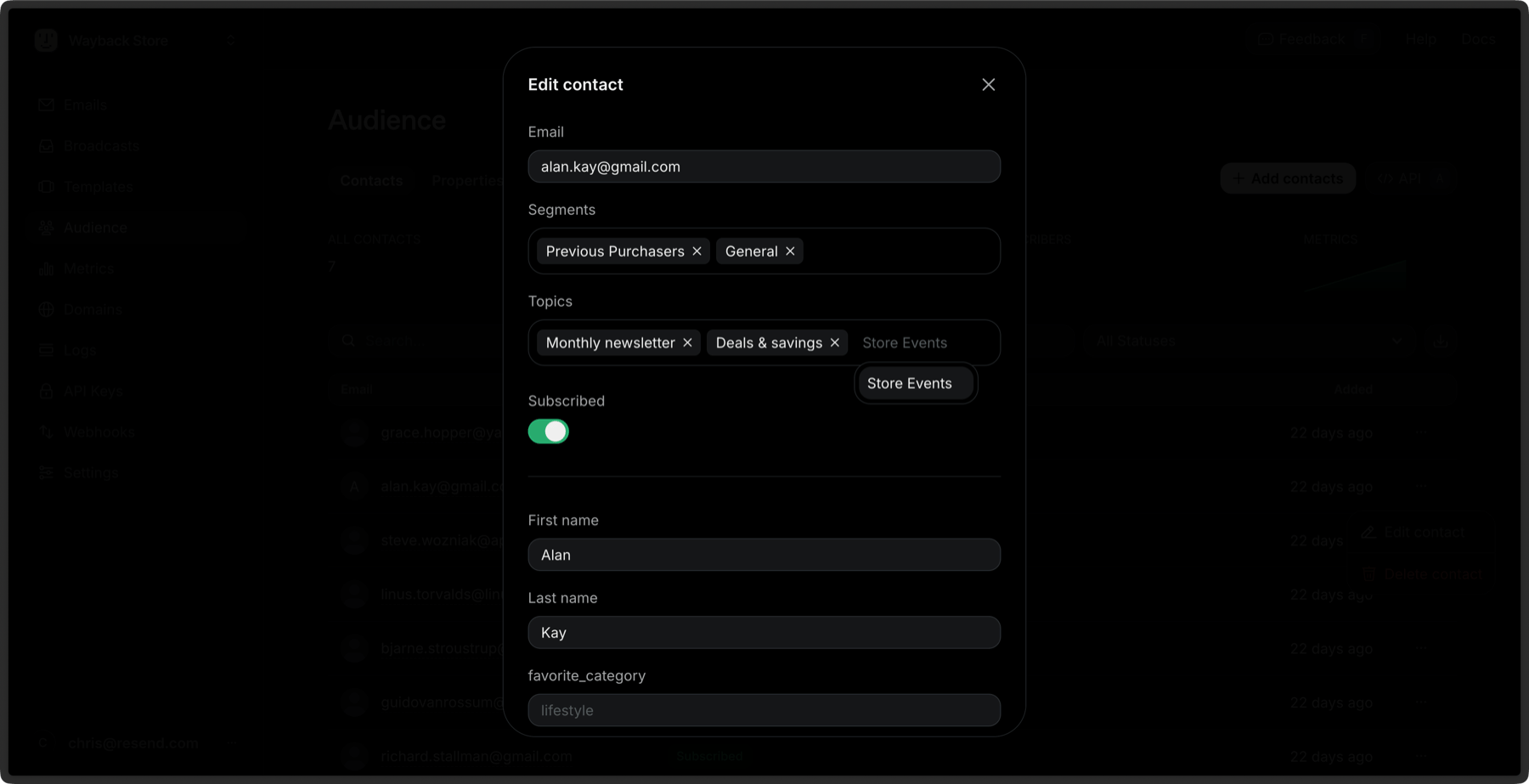
You can also update a Topic subscription for a Contact via the API or SDKs.
Bulk Subscribe to Topics
Section titled “Bulk Subscribe to Topics”You can subscribe multiple Contacts to Topics at once:
- Go to the Contacts page.
- Select multiple Contacts by clicking the checkbox next to each Contact.
- Click the Edit button in the bulk actions bar.
- Select Subscribe to topics.
- Choose the Topics you want to subscribe the Contacts to.
- Click Subscribe.
Learn more about bulk actions for Contacts.